
This is a series of blog post about the new pre-release feature “Microsoft Operations Management Suite (OMS) Connector” in SCCM 1606.
As it is a pre-release feature it is not for production!
The OMS connector allows you to sync data such as collection from SCCM to OMS.
The blog post is as follow:
- How to enable OMS connector in SCCM Pre-release feature
- How to configure the cloud part of OMS connector
- How to deploy OMS agent with SCCM
- What do we get out of the OMS connector in SCCM
Part 2/4: How to configure the cloud part of OMS connector
Prereq is a working OMS Workspace and a AzureAD.
First we need to create a new application in AzureAD – this application is used to connect the onprem SCCM to the Cloud OMS Workspace.
In the AzureAD Portal https://manage.windowsazure.com/ an add a new application

Add An application my organization is developing

Create a name for the new application – use a name that is saying for the OMS connection your are about to create

Enter a “Sign-on URL” and a “APP ID URI” this is only “Dummy” entry’s they will not be used for anything later

In your newly created application go to configure

Scroll down to CLIENT ID – copy this and save for later use
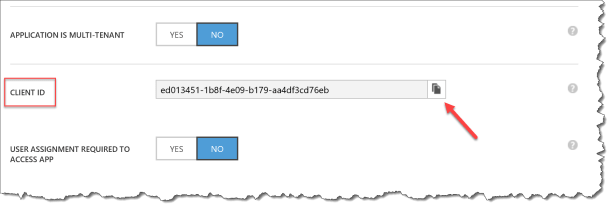
Scroll down to Keys – create a new 2 years key

Click Save – Do don’t close this page before you have copied the secret key

Copy the secret key for later use

Now we need to give permission to the OMS Workspace
Go into the new Azure portal http://portal.azure.com
- Resource group
- Select the resource group that contains the OMS Workspace
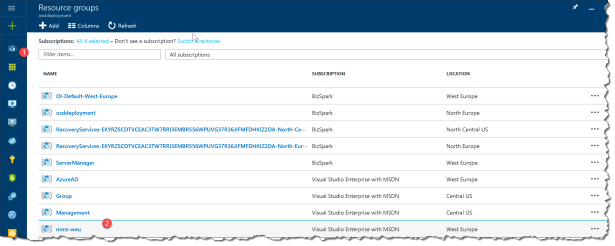
- Select Access control (IAM)
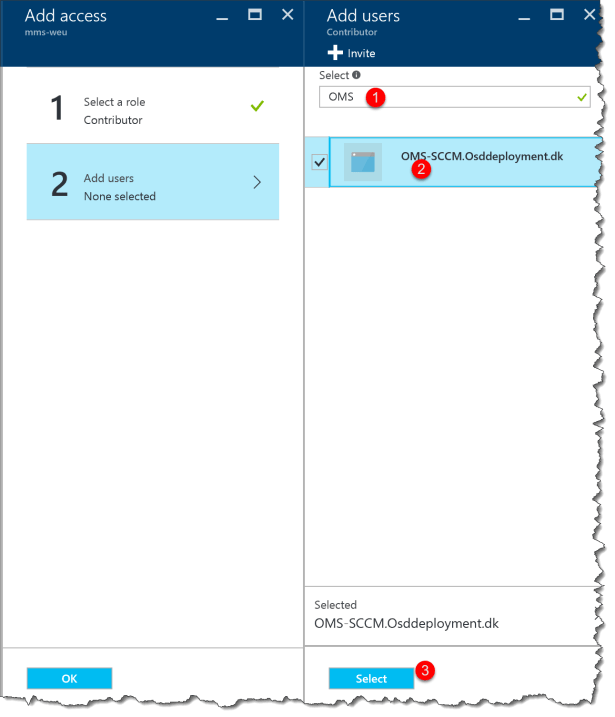
- Select add on the user blade

- Select Contributor

- Search for the Application you have created
- Select the Application
- Select and click ok
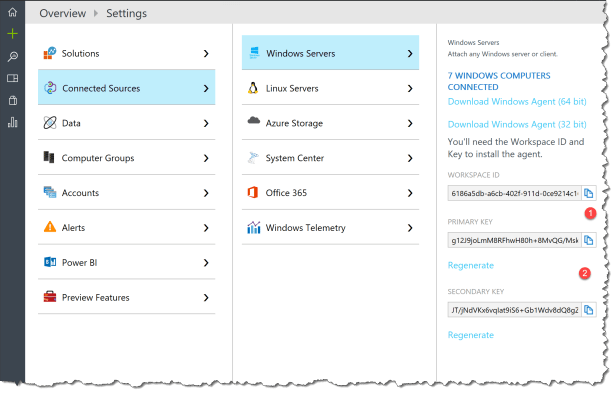
We also need some information from the OMS Workspace.
Go to the OMS portal http://oms.microsoft.com
Go directly to settings

Go to Connected Sources -> Windows Servers
- Copy the Workspace ID
- Copy the Primary Key
Now we are ready to do the actually connection from SCCM to OMS
Start the SCCM Console
Go to Administration -> OMS Connector
Click on “Create connection to Operations Management Suite”

Click Next

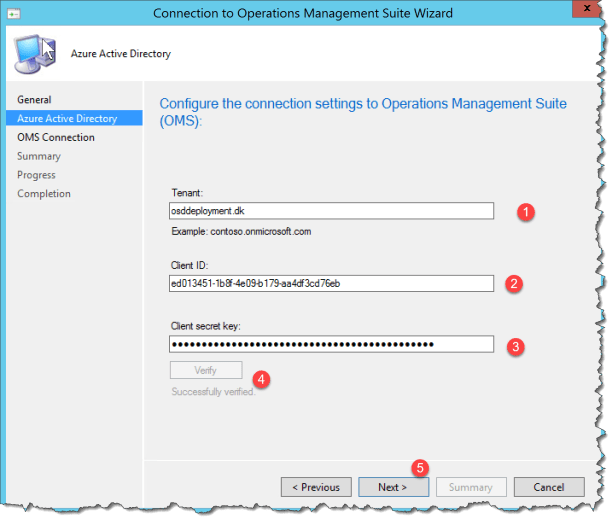
- Enter your Tenant name
- Enter the client ID previous created in AzureAD
- Enter the Client secret key previous copied from AzureAD
- Click Verify
- Click Next
- Select the Azure subscriptions that contains your OMS Workspace
- Select the Azure resource group that contains your OMS Workspace
- Select the OMS workspace ID that you what to connect the SCCM to
- Select the SCCM Collections you what in the OMS Workspace
- Click Next

Select Next

Select close

Continue on my next blog post : How to deploy OMS agent with SCCM

 Cloud First