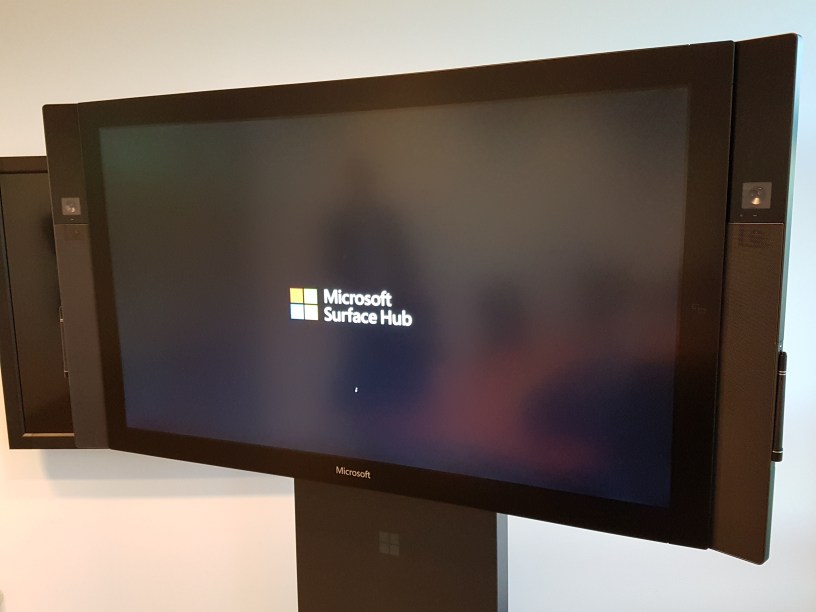
This is not a blogpost about the use of Surface Hub, but only the modern management capabilities and the Microsoft tools to support it.
There is 2 sections in this blogpost:
- Microsoft Active Directory or Azure Active Directory
- Settings management of the SurfaceHub – devided in 3 solutions
- Provisioning profiles
- MDM management with Intune standalone
- MDM management with SCCM
The first thing you need to know about the Surface Hub is running Windows 10 Team – not the same version as on your modern device, laptop or desktop – but Windows 10 Team is based on Windows 10 Enterprise. You can login to Edge, Windows Store and other apps – but credentials are deleted when users press I’m done.
Windows 10 teams does also have a lot of building security feature:
- UEFI Secure Boot
- User Mode Code Integrity (UMCI) with Device Guard
- Application restriction policies using AppLocker
- BitLocker Drive Encryption
- Trusted Platform Module (TPM)
- Windows Defender
- User Account Control (UAC) for access to the Settings app
Surface Hubs are not managed like traditional PCs. Use MDM or provision profiles to configure settings.
The first decision you need to make is do you what to join Surface Hub in Active Directory or in Azure Active Directory. What is the different?
Active Directory:
- Grant admin rights to members of a specified security group in AD.
- Backup the device’s BitLocker recovery key by storing it under the computer object in AD. See Save your BitLocker key for details.
- Synchronize the system clock with the domain controller for encrypted communication
Surface Hub does not support applying group policies or certificates from the domain controller.
Azure Active Directory:
- Grant admin rights to members of Azure AD Global Admin (AzureAD Basis)
- Grant admin rights to a specific user in Azure AD (AzureAD Premium) If you use this option – then all AzureAD joined devices gets the user as an local admin!
- Backup the device’s BitLocker recovery key by storing it under the account that was used to Azure AD join the device. See Save your BitLocker key for details.
- Automatic MDM enrollment in Microsoft Intune (AzureAD Premium)
Surface Hub does not support single sign-on for Windows Store for Business on a AzureAD joined device.
The second decision you need to make is do you what to use MDM or provision profiles to configure your Surface Hub. This is only examples of what you can configure with provision profiles and MDM management.
Provision profiles:
- Use the Windows Imaging and Configuration Designer (ICD) to crate a Provision profile – download the Windows ADK
- The manual process to apply a provision profile on the Surface Hub
- As part of the OOBE
- Full OS in the settings App
- Bulk enrollment works in System Center Configuration Manager (SCCM) + Intune hybrid environment where the ppkg is generated from the SCCM console.
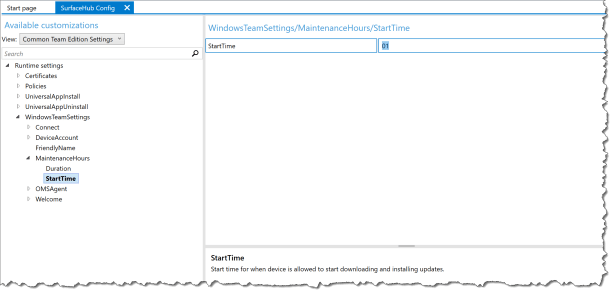
Here is an example for setting a custom WSUS server and change the MaintenanceHours from the default 03 to 01.
Start the ICD
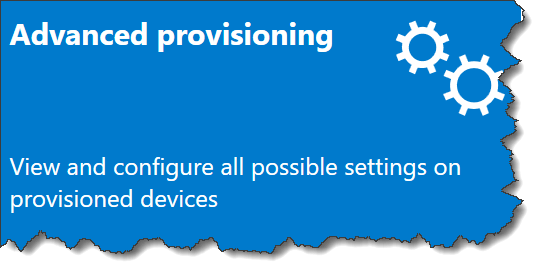
Select Advanced provisioning
Enter a name for your ICD project

Select “Common to Windows 10 Team edition”
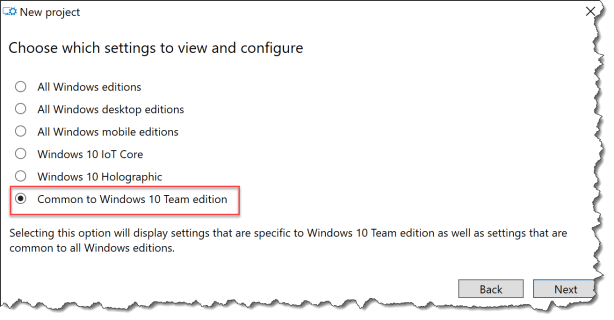
Here is a list of the common settings on Windows 10 Team

Go to – WindowsTeamSettings – MaintenanceHours – StartTime
Enter the value to 01 – this change the default value in this case from 03
Go to Rumtime settings – Policies – Update – UpdateServiceUrl
Change the value to match your WSUS server – in my case http://wsus.isddeployment.dk:8530

Save the provision profile and you are ready to use it on your Sureface Hub.
Go to the Settings App – This Device – Device Management – Add or Remove Provisioning package

MDM Management:
- Intune Standalone
- Intune hybrid with System Center Configuration Manager (SCCM)
- On-premises Mobile Device Management in System Center Configuration Manager ( requires SCCM 1602 or newer)
Here is a couple of examples for setting a custom configuration policy with Intune standalone.
Go to : http://manage.microsoft.com
Create a “General Configuration (Windows 10 Team and later)” policy

Enter The settings you need, save and deploy it to your Surface Hub device group.
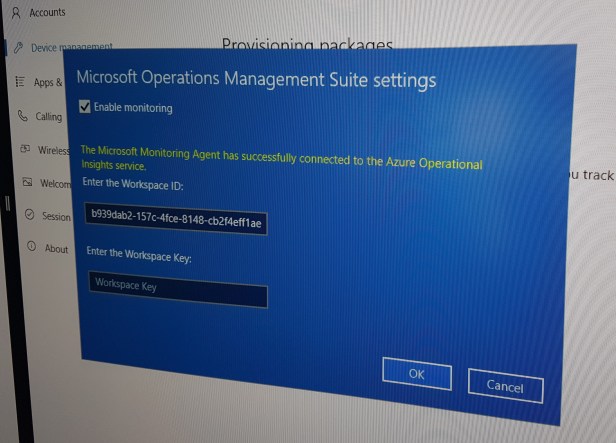
A new setting is the “Enable Azure Operational Insights” so that the Surface Hub will be monitored by the Surface Hub solutions in Microsoft Operations Management Suite.

And it will show up on the Surface Hub Device
Another example is a “Custom Configuration (Windows 10 Desktop and Mobile and Later)”
Here I will set a home page in the Edge browser and set a my own WSUS server in the Surface Hub.
Go to : http://manage.microsoft.com
Create a “Custom Configuration (Windows 10 Desktop and Mobile and Later)” policy

Enter a name for he policy
Under OMA-URI click add
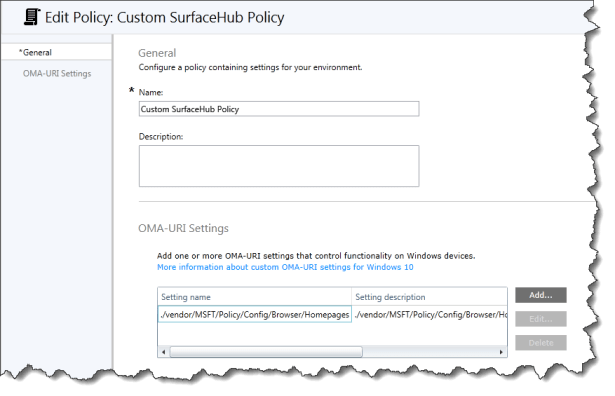
Enter the value for the policy:
Setting Name:
./vendor/MSFT/Policy/Config/Browser/Homepages
Setting description:
./vendor/MSFT/Policy/Config/Browser/Homepages
Data type:
String
OMA-URI
./vendor/MSFT/Policy/Config/Browser/Homepages
Value:
http://osddeployment.dk

Then create another one to set your WSUS server
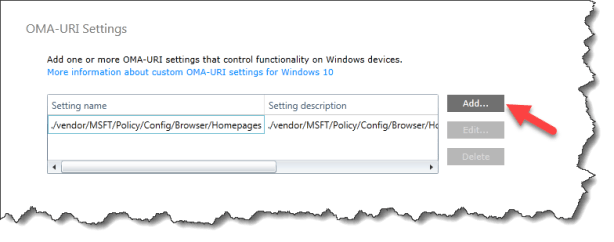
Enter the value for the policy:
Setting Name:
./vendor/MSFT/Policy/Config/Update/UpdateServiceUrl
Setting description:
./vendor/MSFT/Policy/Config/Update/UpdateServiceUrl
Data type:
String
OMA-URI
./vendor/MSFT/Policy/Config/Update/UpdateServiceUrl
Value:
http://wsus.osddeployment.dk:8530

Here is the Home pages on Edge changed from Intune

The settings with Intune standalone is the same as in SCCM.
SCCM with Intune hybrid and SCCM with on-premises MDM uses the same wizards, and settings no matter which solutions you choose.
This is a walk through of the same settings as I did on the settings with the Intune standalone.
Go into the SCCM Console – Asset and Compliance
Click Create Configuration Item

Enter a Name
Select “Settings for devices managed without the Configuration Manager Client” – Windows 8.1 and Windows 10
Click Next

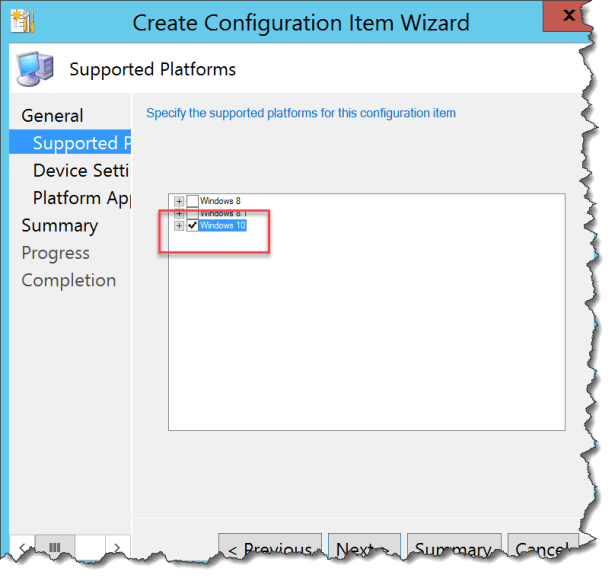
Select Windows 10 – All Windows 10 Team and higher
Click Next
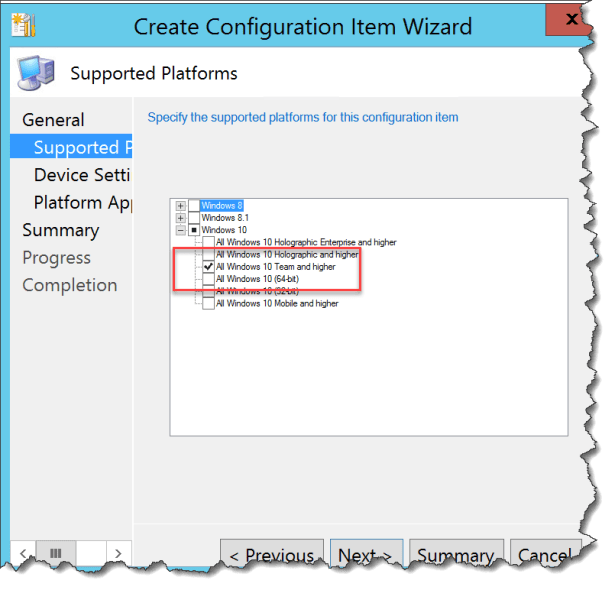
Click Next
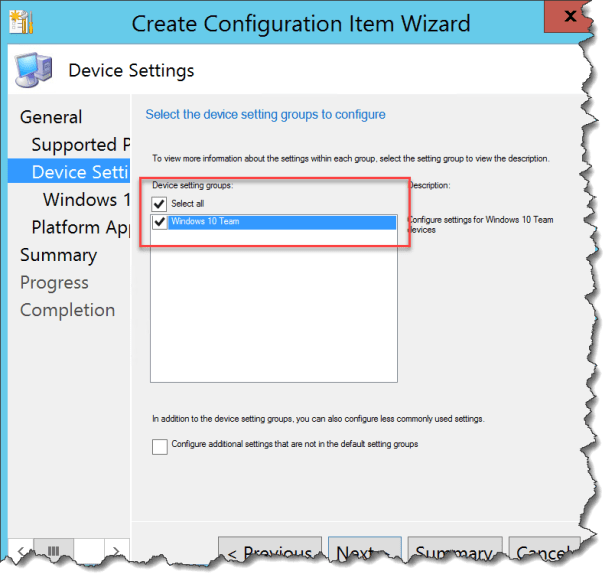
Enter The settings you need, save and deploy it to your Surface Hub device group.
A new setting is the “Enable Azure Operational Insights” so that the Surface Hub will be monitored by the Surface Hub solutions in Microsoft Operations Management Suite.

Click Next
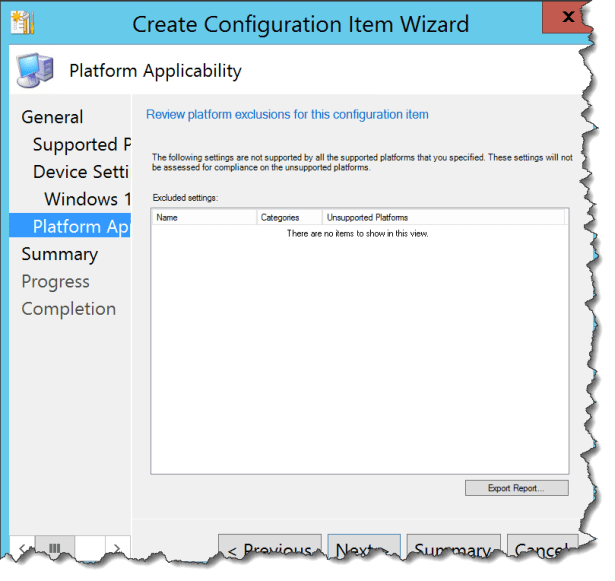
Click Next

Click Close

Now the CI can be deployed with a Configuration Baseline
Another example is a “Custom Configuration (Windows 10 Desktop and Mobile and Later)”
Here I will set a home page in the Edge browser and set a my own WSUS server in the Surface Hub.
Create a new Configuration Item
Enter a name
Select “Settings for devices managed without the Configuration Manager Client” – Windows 8.1 and Windows 10
Click Next

Here you need to select the Windows 10 section
Click Next
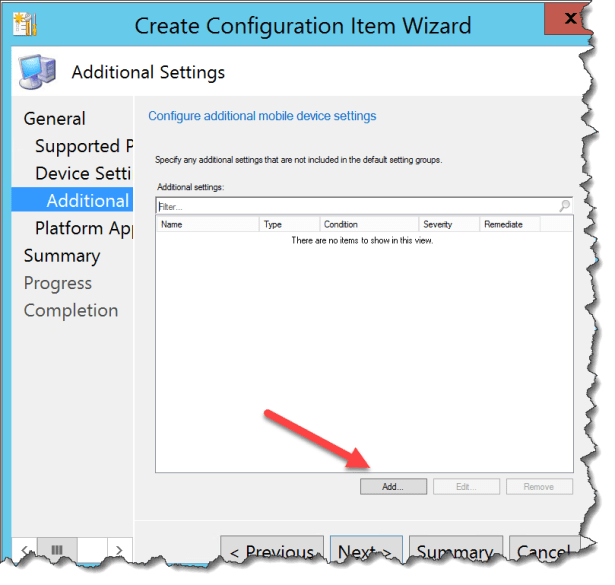
Select “Configure additional settings that are not in the default settings group”
Click Next

Click Add
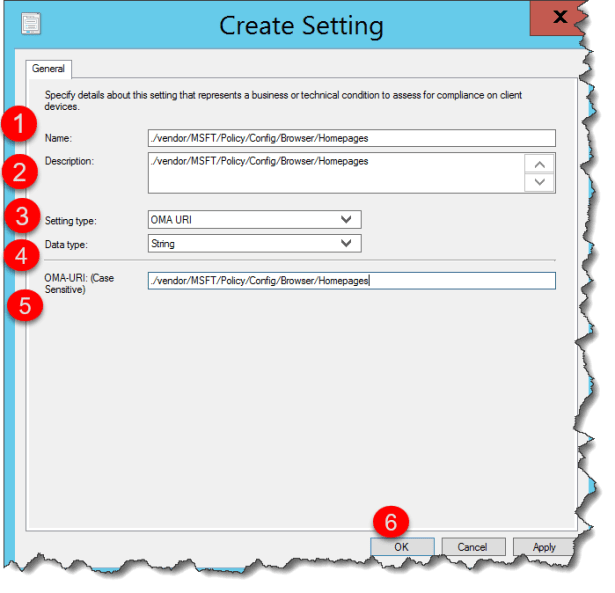
Click Create Setting

Enter:
Name:
./vendor/MSFT/Policy/Config/Browser/Homepages
Description:
./vendor/MSFT/Policy/Config/Browser/Homepages
Settings type:
OMA-URI
Data type:
String
OMA-URI
./vendor/MSFT/Policy/Config/Browser/Homepages
Click Ok
Click Select

Enter:
Value:
http://osddeployment.dk
Click Ok

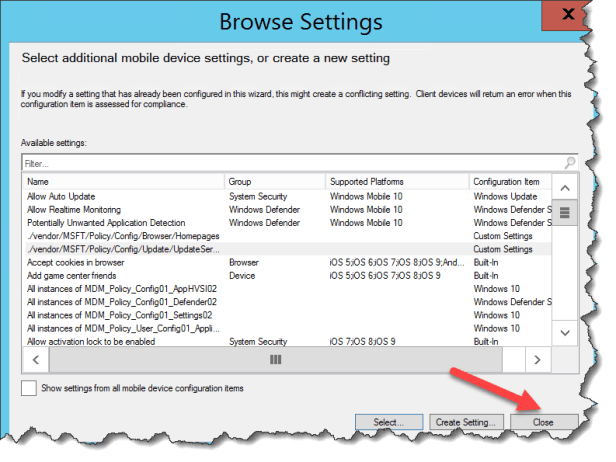
Click Select Setting
Enter:
Name:
./vendor/MSFT/Policy/Config/Update/UpdateServiceUrl
Description:
./vendor/MSFT/Policy/Config/Update/UpdateServiceUrl
Settings type:
OMA-URI
Data type:
String
OMA-URI
./vendor/MSFT/Policy/Config/Update/UpdateServiceUrl
Click Ok

Click Select

Enter:
Value:
http://wsus.osddeployment.dk:8530
Click ok

Click Close
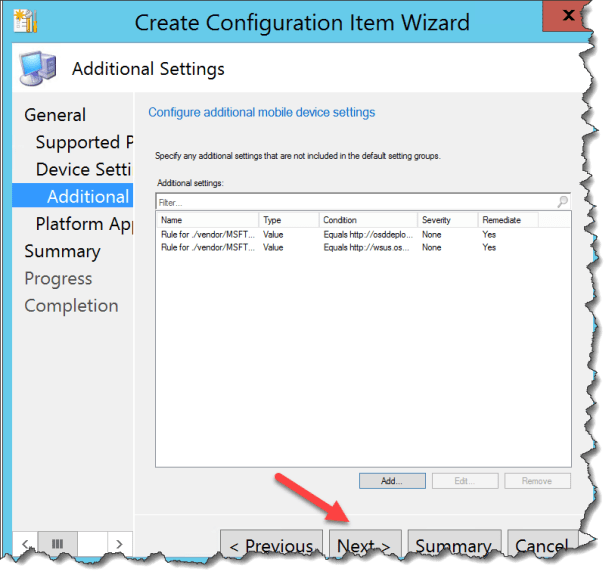
Click Next
Click Next
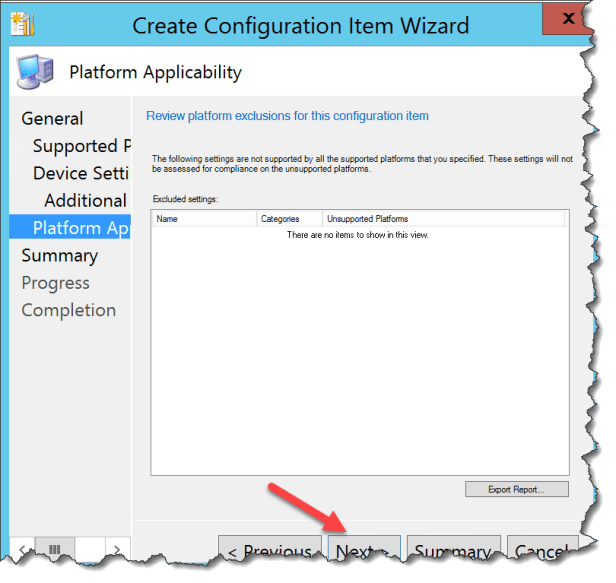
Click Next
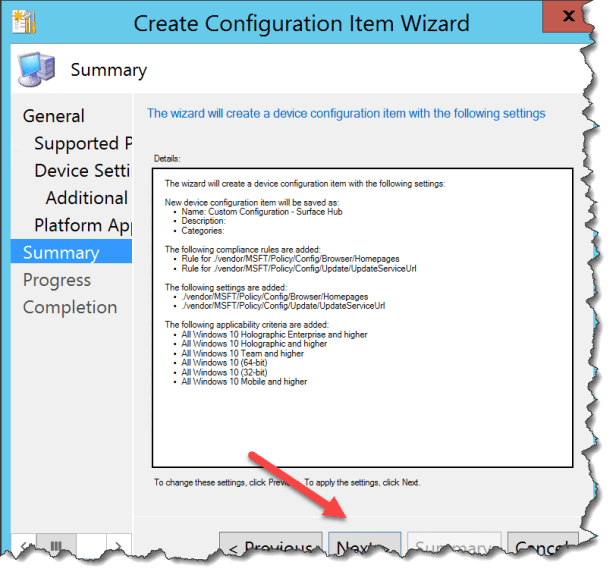
Click Close

Now the CI can be deployed with a Configuration Baseline
More settings for Surface Hub CSP https://msdn.microsoft.com/windows/hardware/commercialize/customize/mdm/surfacehub-csp

 Cloud First
Could you please send me the details of Surface hub enrollment to SCCM 1602 with certificate requirements.
Hi. I do not have a guide on who to enable MDM on SCCM – Please take a look at this : https://docs.microsoft.com/en-us/sccm/mdm/understand/manage-mobile-devices-with-on-premises-infrastructure
/Per