
First of all, Office Pro Plus 2019 is not the preferred Office Suite to deploy, that is Office 365 Pro Plus that is updated on a monthly basis with new cool features. But there are scenarios where Office Pro Plus 2019 is a better solution, an example is a user less shared device where you need a Office installed, Office 2019 can be deployed from Intune in that case.
Office 2019 is a click to run installation like Office 365 Pro Plus unlike Office 2016/2013 and 2010 that are MSI based installations
In this blog post I will:
- Show how to create a custom xml file to deploy Office 2019
- Create and deploy Office 2019 application with Intune
- Show how you can upgrade Office 2019 to Office 365 with out reinstalling
Start config.office.com either sign in or continue with out signing in.
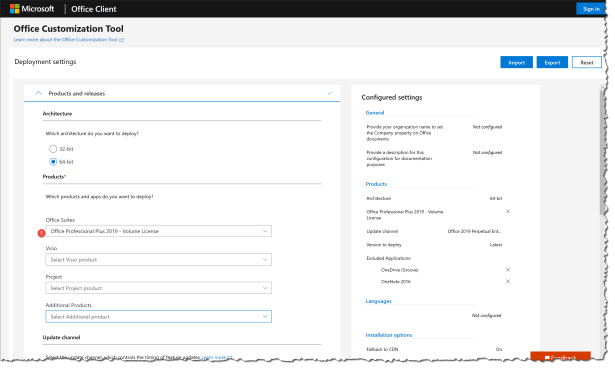
Products and releases
- Select Office Suites : Office Professional Plus 2019 – Volume License
Languages
- Select Primary language – Match Operation System

Installation options
- Show installation to user
To make the installation silent for the end user

Product key
Office 2019 is not subscription based activation like Office 365 Pro Plus and when you deploy Office 2019 with Intune you do not always have access to a KMS server that is the reason for choosing MAK keys
- Select Multiple Activation key (MAK)
- Set Autoactivate to On
- Set Automatically accept the EULA to On

Application Preferences
Search for Office + First Run
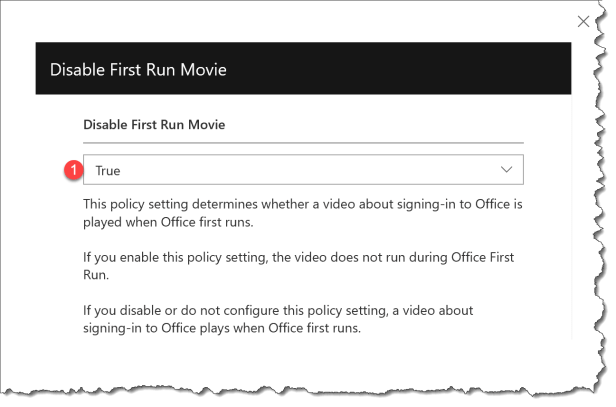
- Select Disable First Run Movie
- Disable Office First Run on-application boot

Disable First Run Movie
- Set to True
Disable Office First Run on-application boot
- Set to True

Search for Office + Privacy + Trust Center
- Select Disable Opt-in Wizard on first run
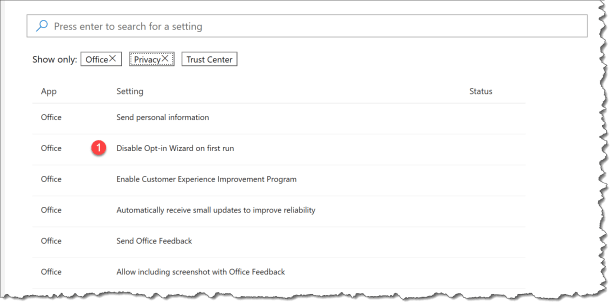
Disable Opt-in Wizard on first run
- Set to True

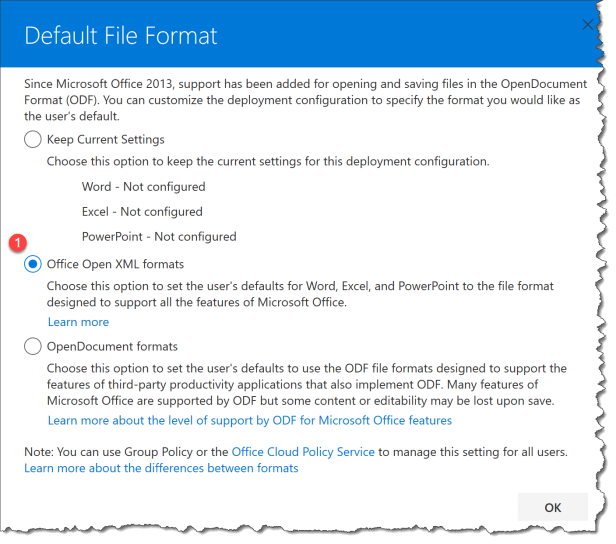
Default File Format
- Select Office Open XML formats
Export configuration to XML
- Select “I accept the terms in the license agreement”
- File Name : OOP2019
- Click Export

Create you Office Pro Plus 2019 application in Intune
Start devicemanagement.microsoft.com
- Select Client apps
- Select Apps
- Click Add

- Select Office 365 Suite – Windows 10
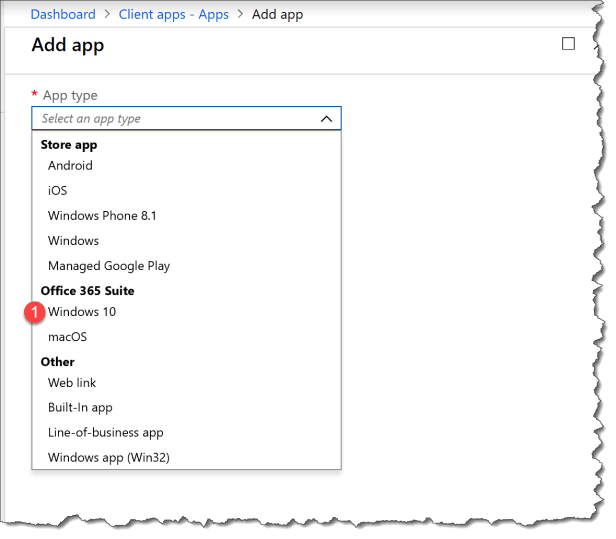
- Enter App type : Windows 10
- Select Settings format : Enter XML data
- Click App Suite inforamtion – Configure the app suite information
- Enter Suite Name : Office Pro Plus 2019
- Enter Suite Description : Office Pro Plus 2019

- Click Enter XML data
- Copy you Office 2019 xml file you created earlier

Now you are ready to assign you new Office 2019.
User experience for installing Office Pro Plus 2019 with Intune
The end user can now start Company Portal to get the application you have assigned
- Click on Office Pro Plus 2019

- Click Install

When the installation is finish the end user getting the massage in Company Portal and ready to use Office 2019 with the basic configuration your created so they will not be prompted for any thing at the first launch.

Upgrade Office 2019 to Office 365 ProPlus
If you figure out the Office 2019 was not the right version for you then you don’t have to uninstall Office 2019 and install Office 365 you can just to a “upgrade” with a Intune ADMX based policy
- Click Device configuration
- Click Profiles
- Click Create profile
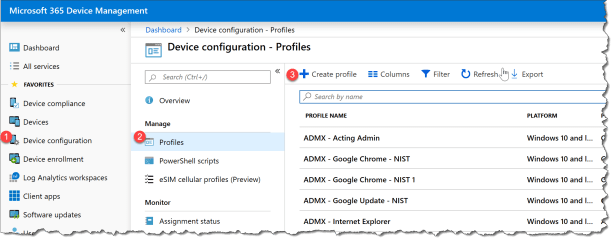
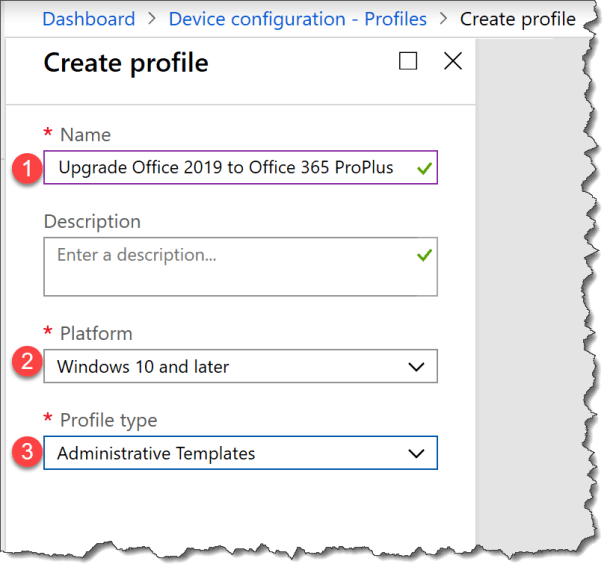
- Enter name : Upgrade Office 2019 to Office 365 ProPlus
- Platform : Windows 10 and later
- Profile type : Administrative Templates
- Click Settings
- Search for upgrade
- Select “Upgrade Office 2019 to Office 365 ProPlus”

- Select Enable

Now you just have to deploy the Intune profile “Upgrade Office 2019 to Office 365 ProPlus” to the devices where you want to change from Office 2019 to Office 365
Happy deployment
Read more:
What’s the difference between Office 365 and Office 2019?

 Cloud First