
In this blogpost I will walk trough how to enable it on a personal device that are not managed devices, explain how it works and what to be aware of.
Table of Contents
- What is Administrator Protection
- How to Enable Administrator Protection on Your Personal Device
- End User Experience
- What Happens If You Remove the Virtual Admin Account from the Administrator Group
- Conclusion
What is Administrator protection
Administrator protection in Windows 11 is a security feature designed to enhance the protection of administrator accounts, administrator protection is currently available in Windows insider – everything in this blog post is done on Windows insider Dev OS Build 27746.1000 and tested on a Hyper-V VM.
Here are some key points about administrator protection:
• Least Privilege Principle: By default, users operate with standard privileges. When an action requiring administrator rights is needed, Windows prompts for authorization.
• Just-in-Time Elevation: When admin privileges are required, Windows generates a temporary admin token for that specific task. Once the task is complete, the token is deleted, ensuring admin privileges don’t persist.
• Integrated Authentication: Administrator protection uses Windows Hello for secure authentication, requiring a PIN or biometric verification.
• Enhanced Security: This feature helps prevent malware from making unauthorized changes and reduces the risk of accidental system-level changes by users.
How to enable Administrator protection on your personal device:
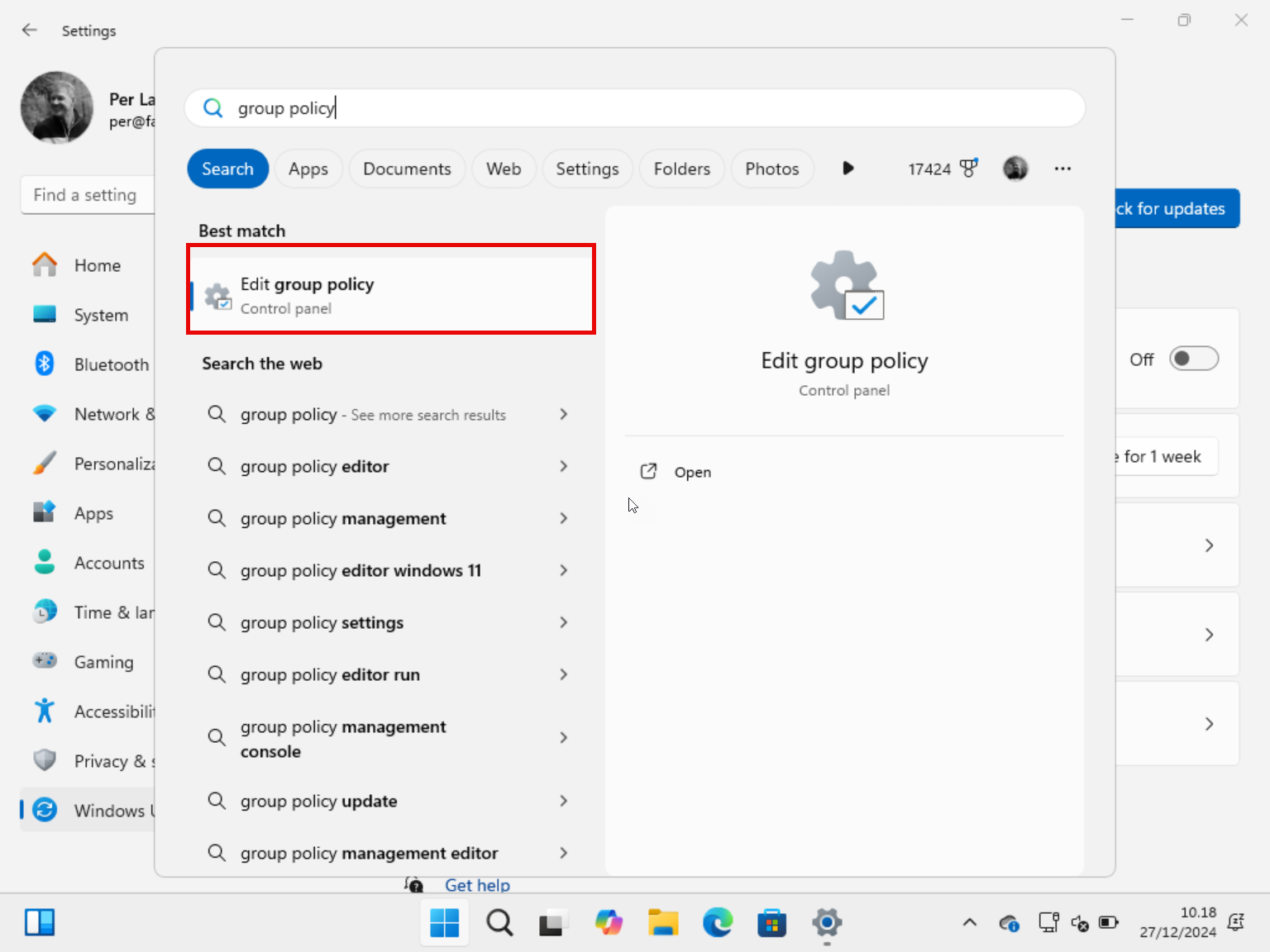
First you click on Start on your Windows device and type Group Policy:
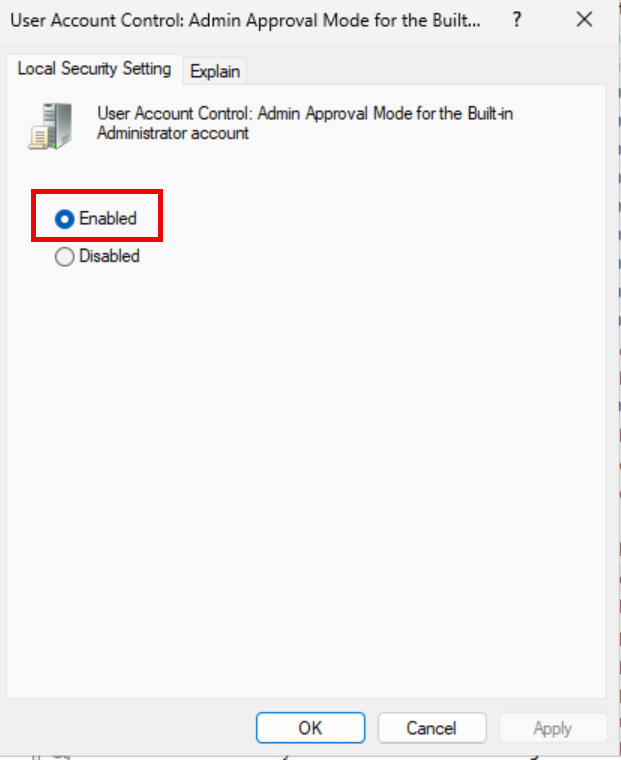
Browse to Computer Configuration – Windows Settings – Security Settings – Local Policies – Security Options then click on User Account Control Admin Approval Mode for Built-in Administrator Account
This policy setting controls the behavior of Admin Approval Mode for the built-in Administrator account.

Default is Not Configured
Select Enable
Browse to Computer Configuration – Windows Settings – Security Settings – Local Policies – Security Options then click on User Account Control Configure type of Admin Approval Mode.
ser Account Control Admin Approval Mode for Built-in Administrator Account
This policy setting controls whether Administrator protection is applied to admin approval mode elevations. This policy setting, requires you to restart your computer before it has any effect.
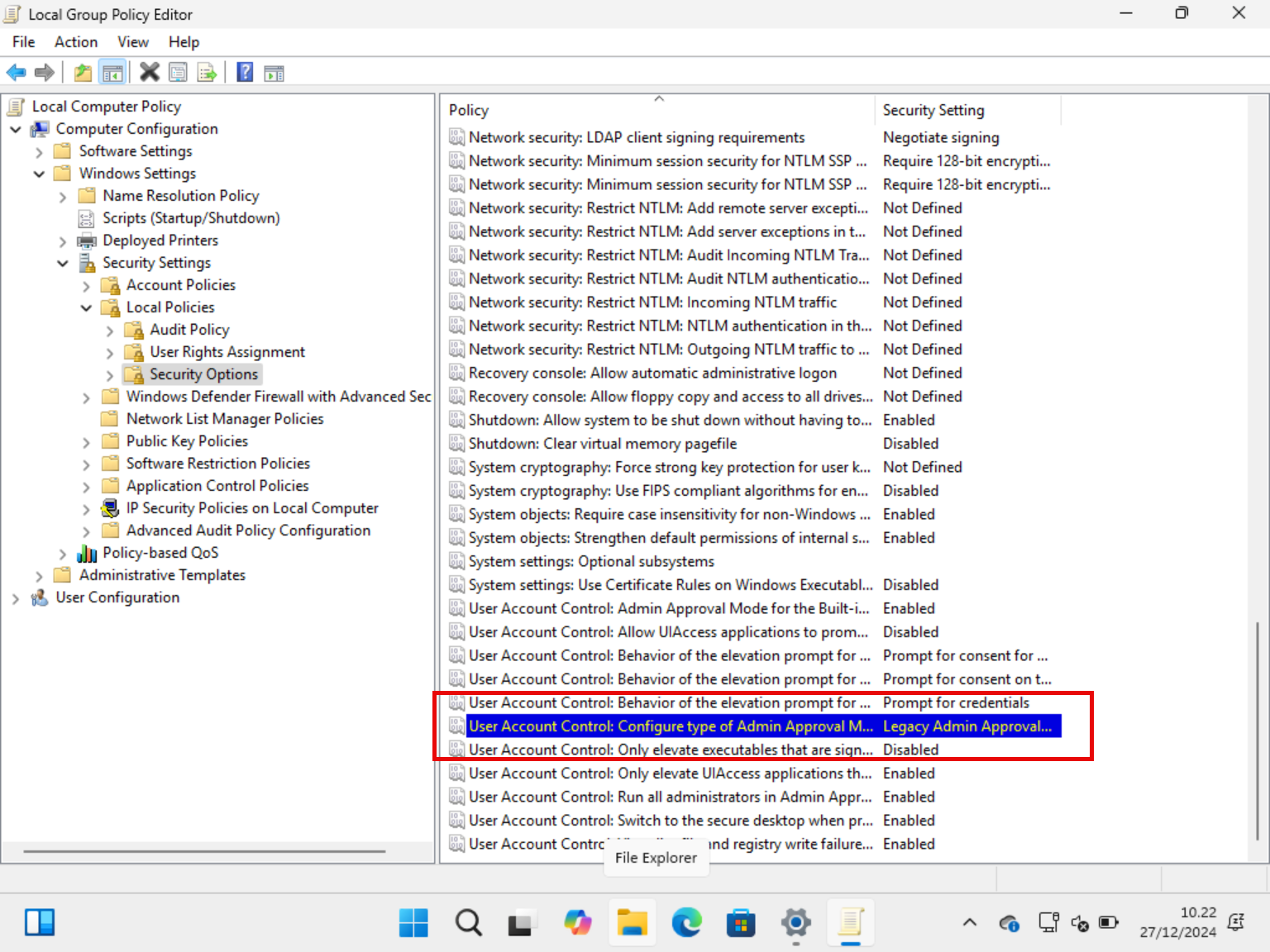
Default is Legacy Admin Approval Mode
Select Admin Approval Mode with Administrator Protection.

After a reboot of your device all your accounts that are member of the local administrator groups are running with they new Administrator Protection enabled.
End user experience:
When Administrator Protection is enabled, you get a slightly different end-user experience.
You will see a new and improved Windows Security prompt that are asking you to Allow changes, you are also getting the information about the installer, the publisher, if you click on the information icon you also gets the command line that will be executed.
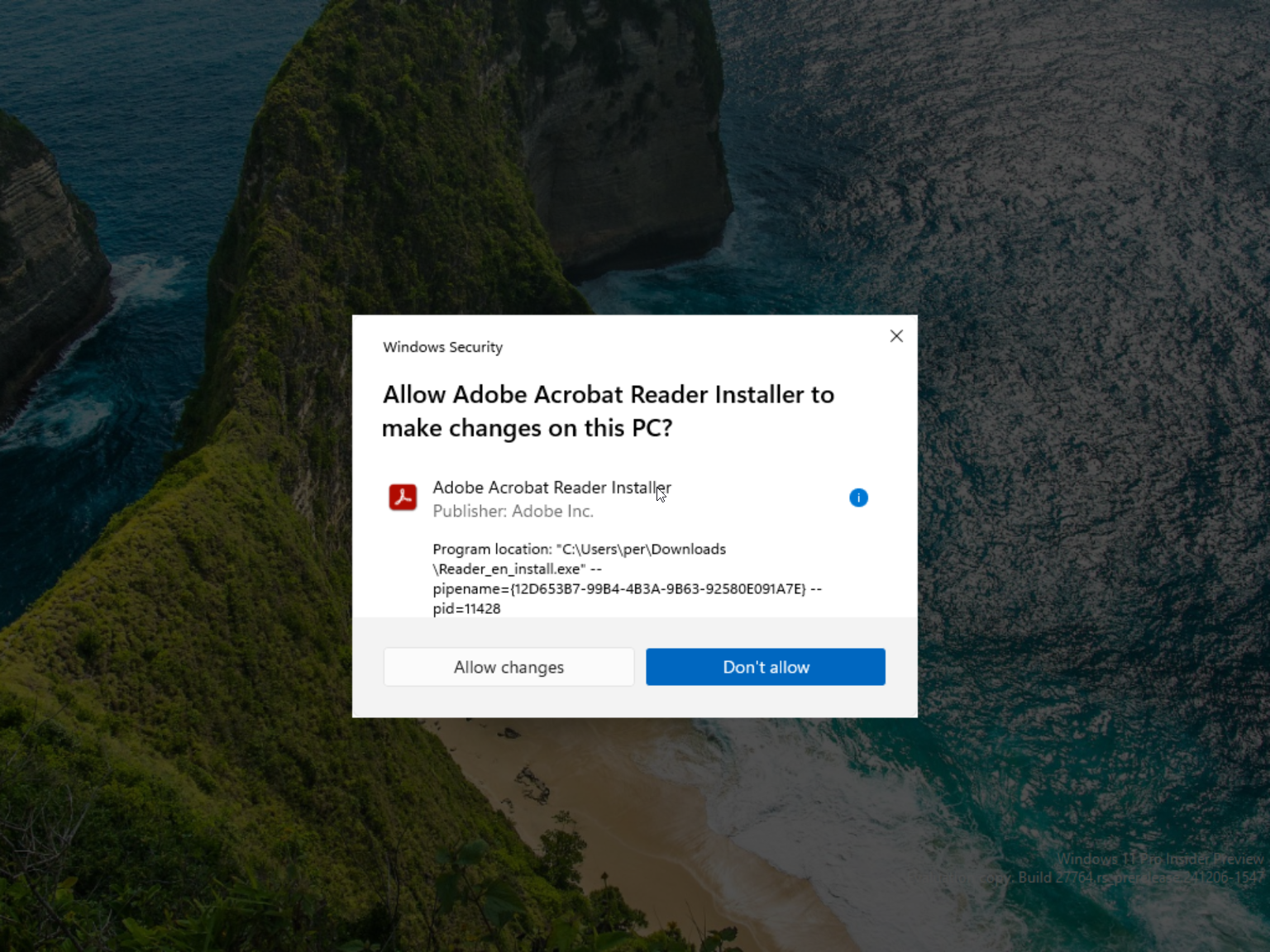
After you get the new Windows Security prompt for the first time as a local administrator, Windows will create a virtual account for called ADMIN_Username. You can see the both in the Local Users and Groups MMC but also in the file system:
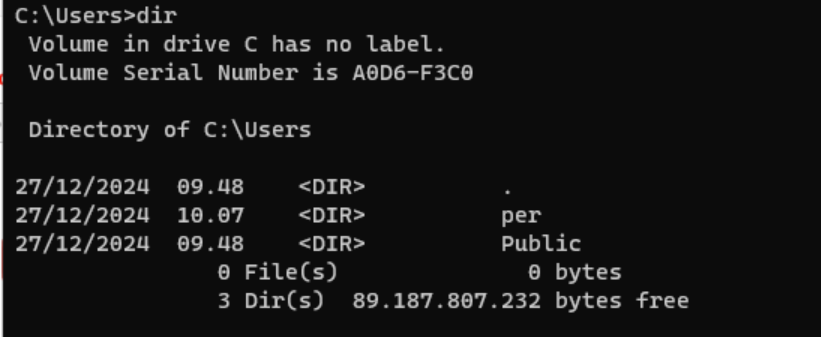
Before launching a process that spoons the new Windows Security UI you only have the user profiles for the user you have created.
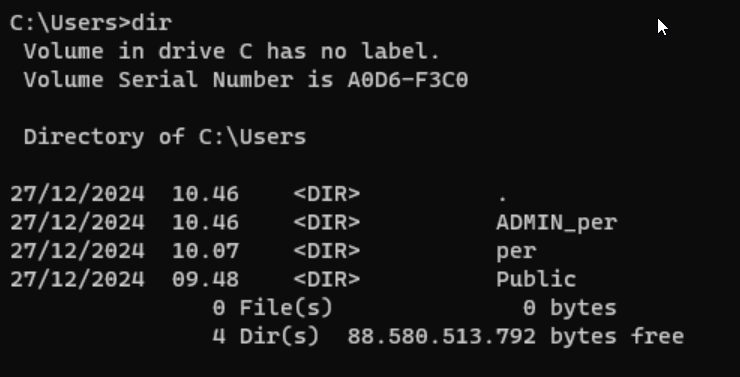
After you get the new Windows Security UI and Allow Changes, Windows will automatically create a new user profile.
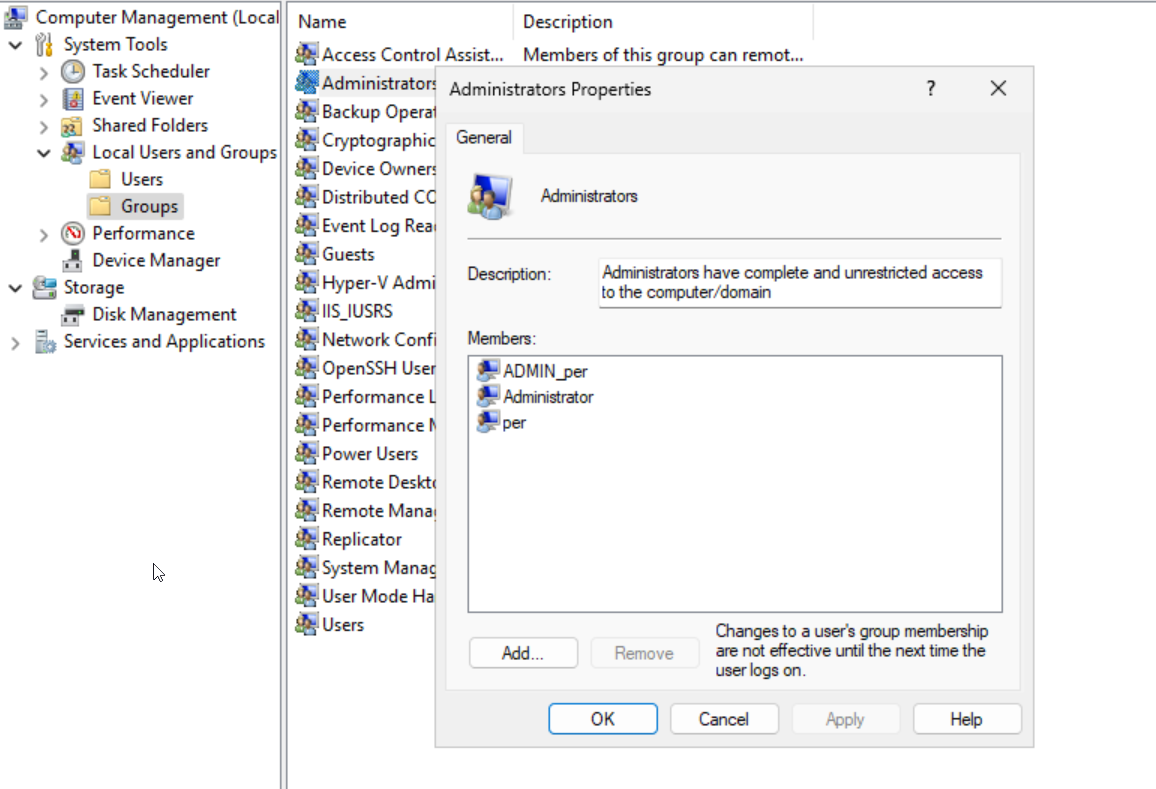
Your virtual account will also be added to your local administrators groups. You can read more about how Windows works with virtual accounts here : https://learn.microsoft.com/en-us/windows-server/identity/ad-ds/manage/understand-service-accounts#virtual-acc
What happens if you remove the virtual admin account from the Administrator group
If you delete the virtual admin account from the local administrator group, in my case ADMIN_per and still have the policy active on your device, you will get your self into trouble. You will get the normal Windows Security prompt for administrator protection.
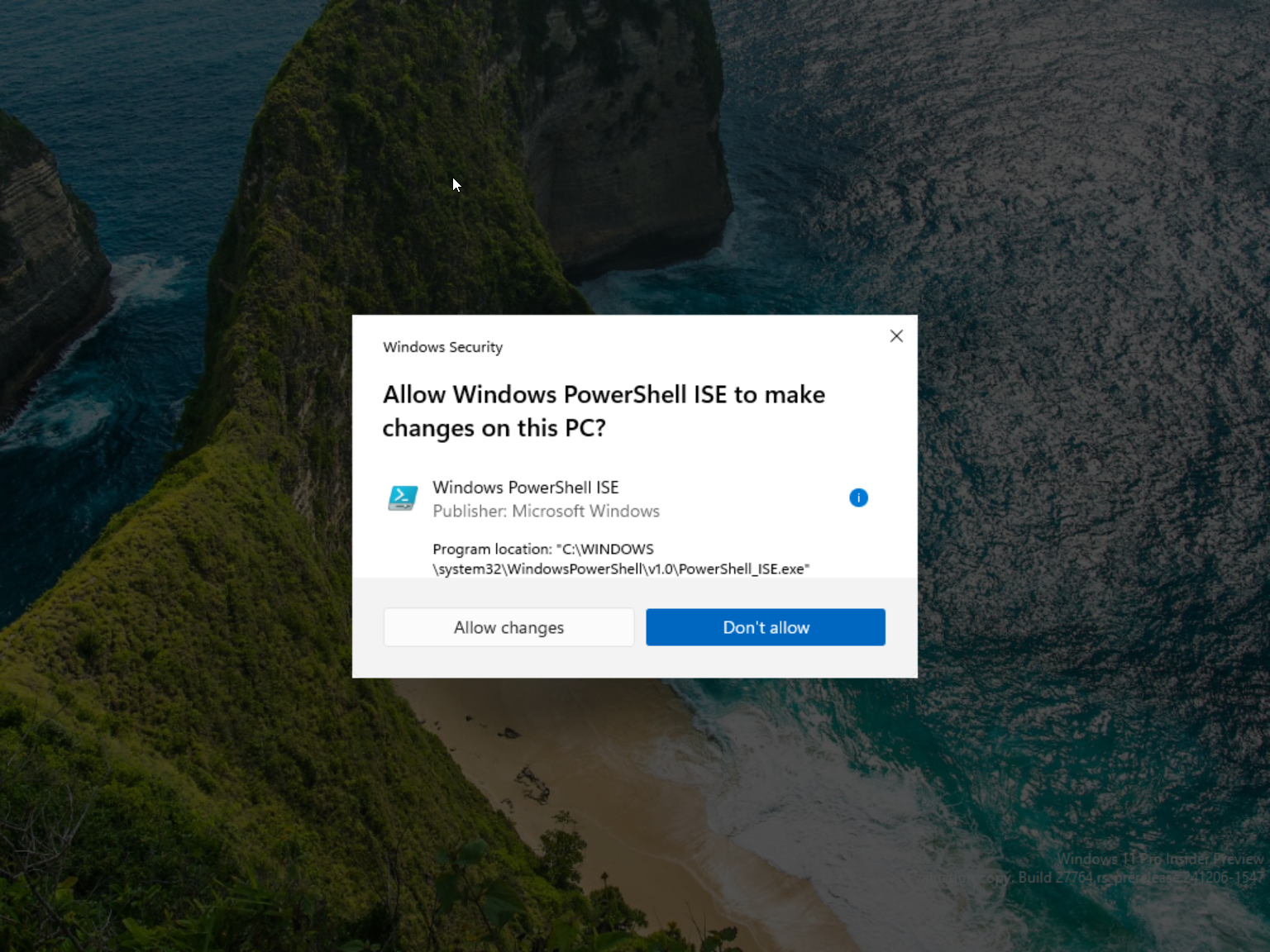
But when you click Allow changes – you will get at error message as the logon session does not exist.
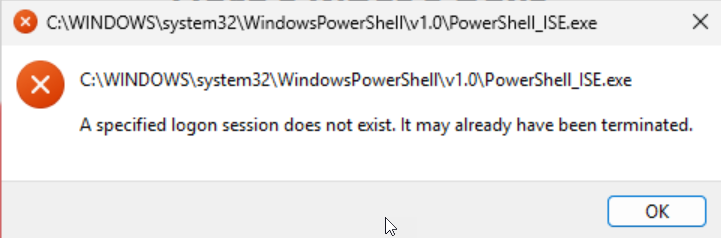
If you out the account back into the local administrator group everything works again.
Lets say for a second that you do not put the virtual admin account back into the local administrator group an restart your device.
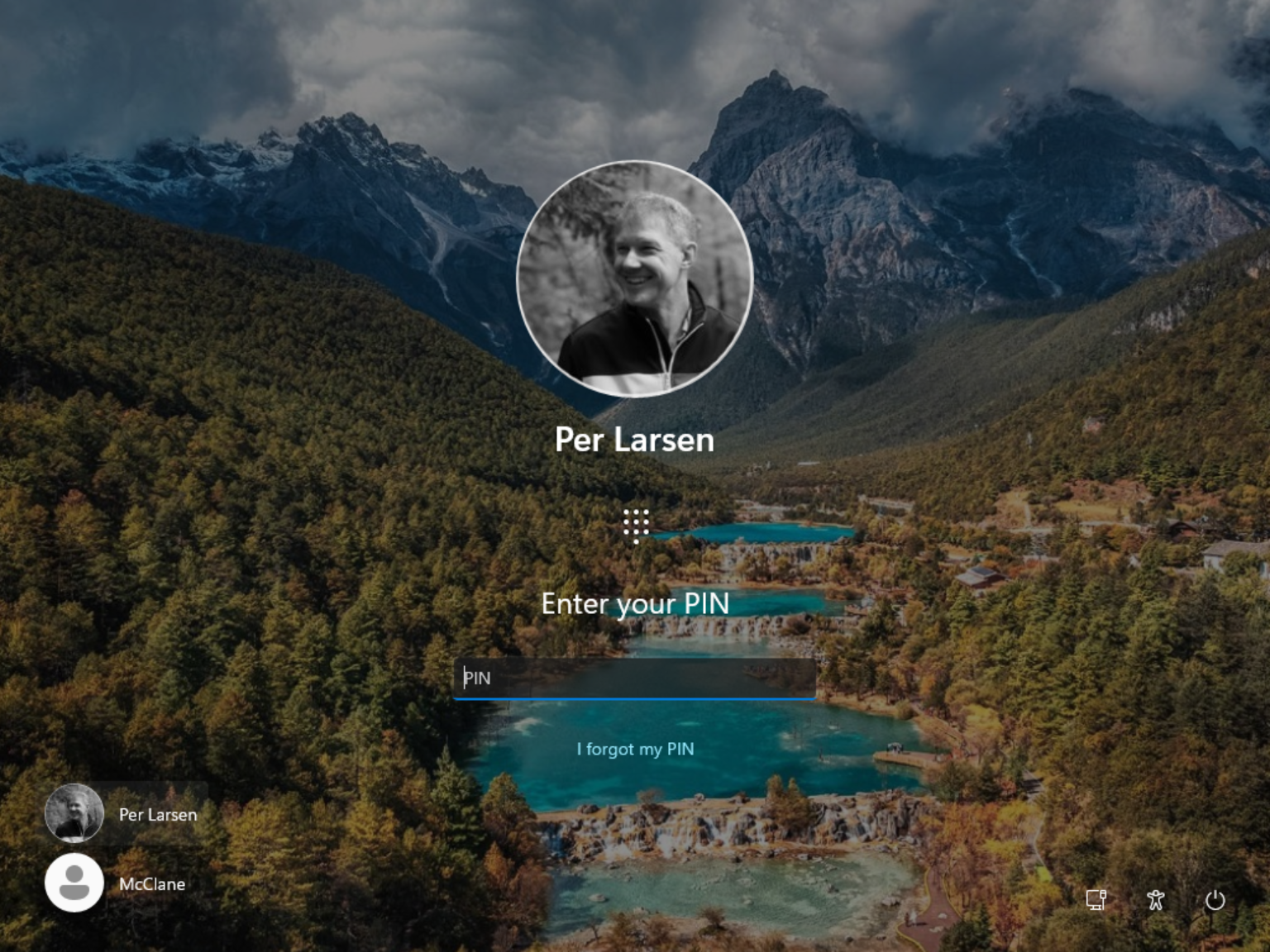
You will get your normal sign-in option where you can sign-in with Windows Hello.

But you will get an error that a specific logon session does not exist. At this point if you do not have a way to sign-in to your Windows device or have a option to disable the policy you have a device in a very bad state,
I will write yet another blogpost about how Administrator Protection is working on a MDM managed device – stay tuned.
Conclusion
This is a security feature in Windows that will help making Windows more secure as everything that is running elevated will run in a isolated user context. It do not change the recommendation that you shout not be a local admin on your device as gives you the right to run everything in system context and change all security settings on the device.
If you have the need to be a local admin on your device, this is a very cool feature – and you should start test it if you are a Windows insider.
You can read more information about administrator protection here :
Administrator protection on Windows 11
https://techcommunity.microsoft.com/blog/windows-itpro-blog/administrator-protection-on-windows-11/4303482
Happy testing

 Cloud First