
Some times the message “Something went wrong” with Microsoft Intune Endpoint Privileged Management (EPM) is expected – like in this case with downloaded files from the Internet and using EPM to elevate a executable file.
Table of Contents
First an explanation of what the Mark of the Web (MoTW) is:
MoTW is a security feature used by Microsoft Windows to mark files downloaded from the Internet as potentially unsafe. When a file is marked with MoTW, Windows warns users that the file could be harmful and gives them the option to either continue or cancel execution.
- Browser Implementation: Most modern browsers, including Microsoft Edge, Chrome, and Firefox, add the MoTW to files they download.
- Alternate Data Stream (ADS): MoTW is implemented using the ADS feature of the NTFS filesystem, meaning the mark is stored in a hidden stream associated with the file.
- Zone Identifier: The ADS contains a “Zone Identifier” that indicates the origin of the file, such as whether it came from the Internet, local intranet, or a trusted site.
- Security Measures: Files marked with MoTW have restrictions, such as preventing macros from running in Microsoft Office files unless the user explicitly overrides the warning, as well as limitations on executing executables.
Showcasing the issue:
When you open a downloaded files with EPM, in this case Adobe Reader – Reader_en_install.exe and click continue.
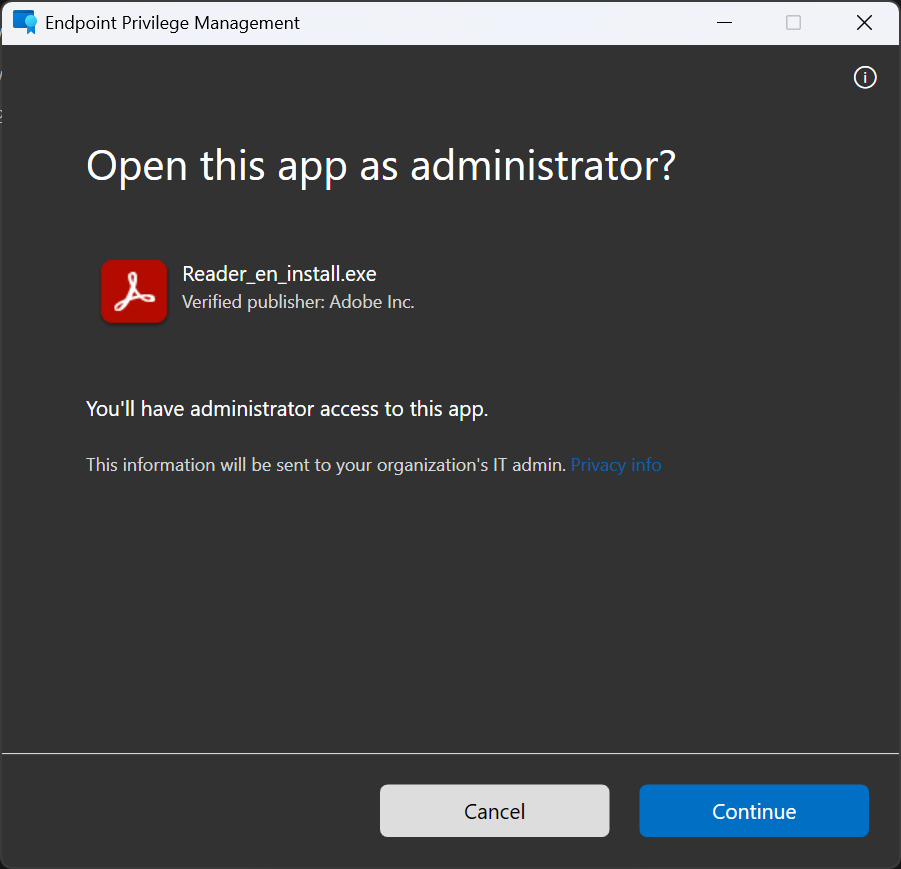
You will the the message “Something went wrong” with a description that the app original came from a different source then your local device.
Error code : 0x87E00206 (-2015362554)

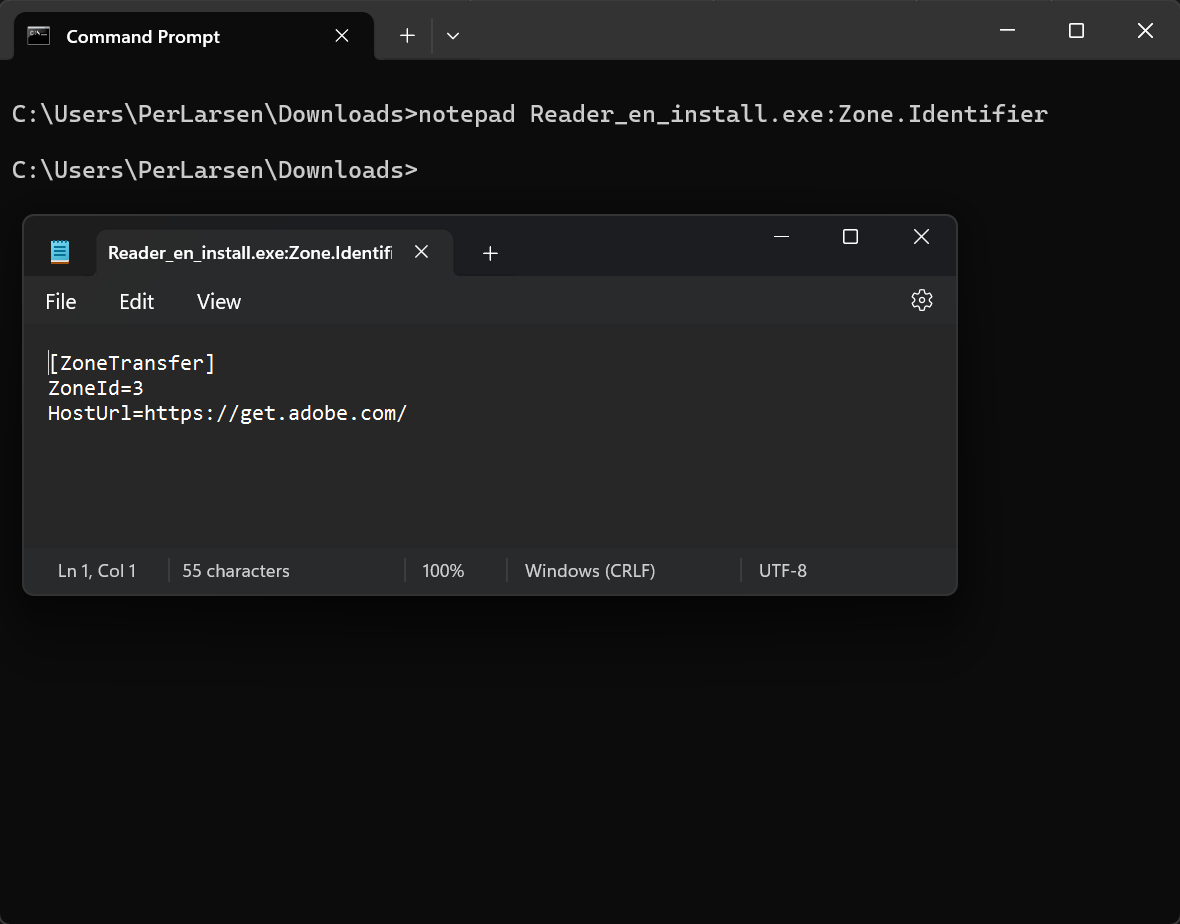
You can run notepad {name of file}:Zone.Identifier to get the information about the ZoneId – in this case I run notepad Reader_en_install.exe:Zone.Identifier to get the information about the ZoneId for Adobe Reader I just downloaded. So depending on your Restricted sites zones configuration you can have a different end user experience.
ZoneID can be:
0 = My Computer
1 = Local intranet
2 = Trusted sites
3 = Internet
4 = Restricted sites
How to fix the issue:
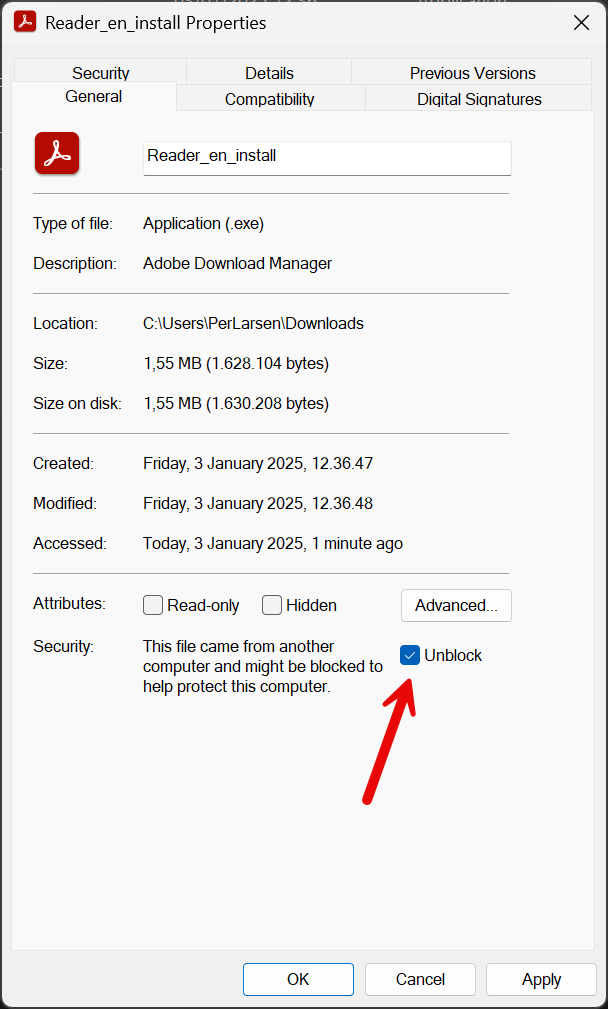
You can right click on the downloaded file in explorer to access the file properties – click on Unblock and ok.
Note: You should only unblock a file that you trust.
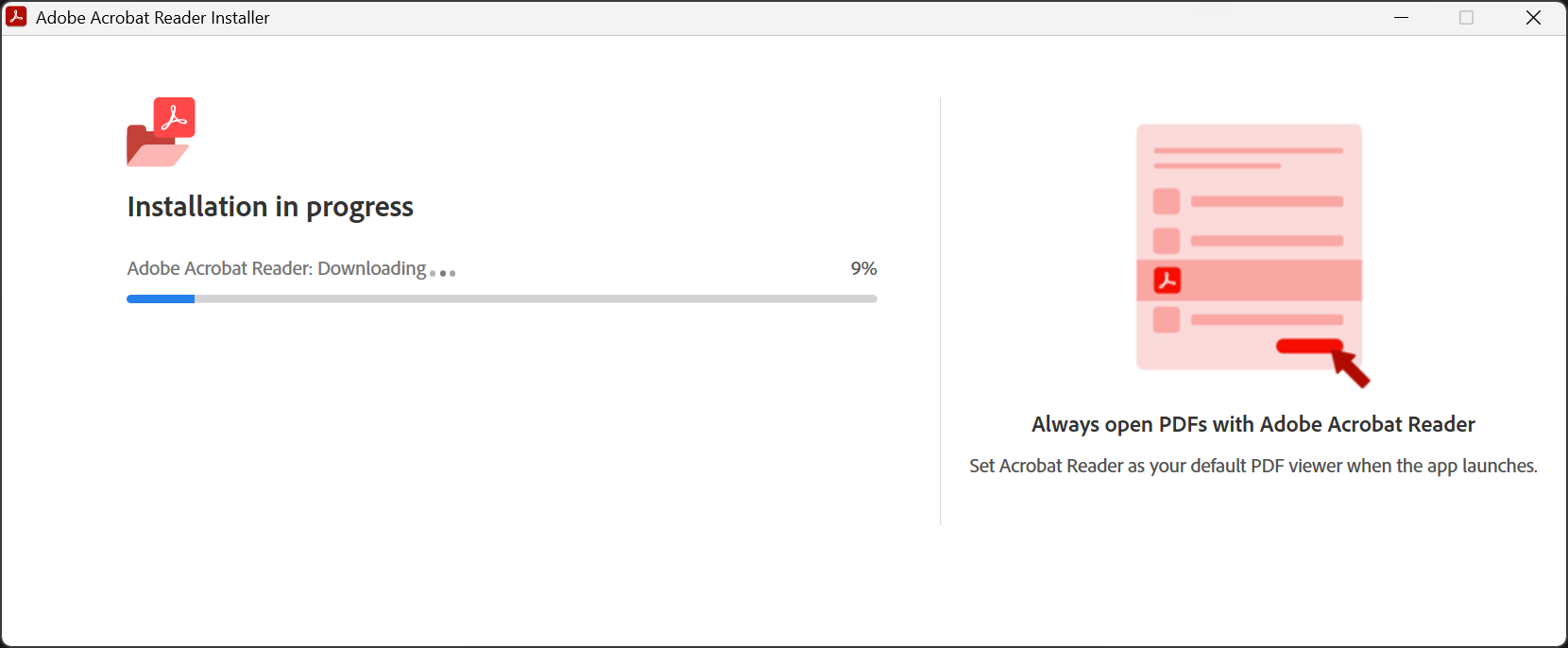
Once you have unblocked the downloaded file – you can now leverage EPM to elevate the installation.
Read more about Mark of the Web:
You can read more about Mark of the Web here : https://learn.microsoft.com/en-us/microsoft-365-apps/security/internet-macros-blocked#mark-of-the-web-and-zones
Microsoft Intune EPM know issue : https://learn.microsoft.com/en-us/mem/intune/protect/epm-deployment-considerations-ki#blocked-files-downloaded-from-the-internet-fail-to-elevate
Hope that this helped you.

 Cloud First