Privacy is becoming increasingly important for companies and end users. Your end users might see more popups on their devices. However, as an IT administrator, you have the choice to configure those settings for your end users.
Index
- Issue
- Solution
- Getting Microsoft Teams app info
- Creating the policy
- End user experience after the privacy policy applies
- Conclusion
Issue:
Some users experience Microsoft Teams keeps asking for permissions to access microphone and camera with a message like this.
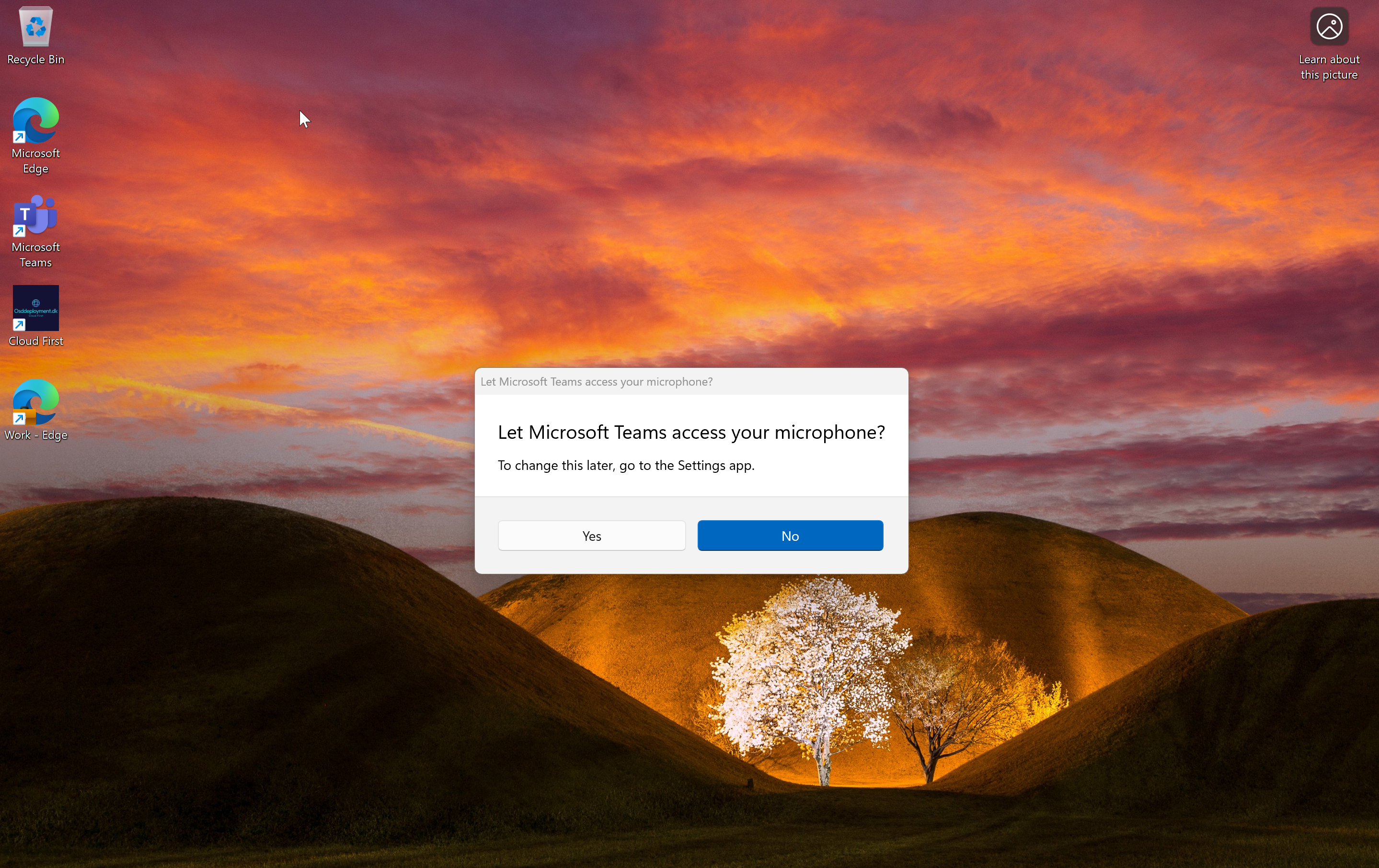
What can we as IT administrators do to help our end user with the best possible end user experience??
Solution:
You can adjust the privacy settings for Microsoft Teams on your end users’ devices. Use a management tool like Microsoft Intune for this task. With the Privacy CSP ./Device/Vendor/MSFT/Policy/Config/Privacy/ you can configure the behavior.
I will demonstrate how to force allow Microsoft Teams to use the Microphone, Camera, and location. This will not change the existing allow or deny settings for other apps configured by the end user.
Getting Microsoft Teams app info:
Learn more about the policy here : https://learn.microsoft.com/en-us/windows/client-management/mdm/policy-csp-privacy
First I need to find the PackageFamilyName. I do that by getting the information from a device. This device should have Microsoft Teams already installed.
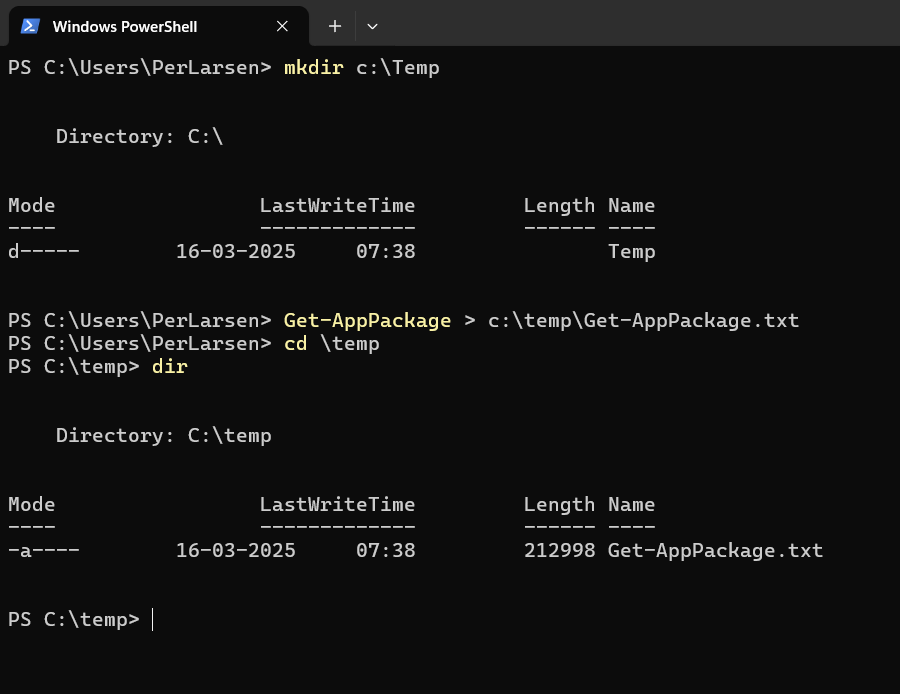
Start PowerShell
Create a directory where you can put an outputfile by using the command mkdir c:\temp
run the command Get-AppPackage > c:\temp\Get-AppPackages.txt
The creates a list of all AppPackages installed on your device.

You can then search inside the file for Microsoft Teams.
Then you can fine the PackageFamilyName : MSTeams_8wekyb3d8bbwe that you need inside your policy creating.
Creating the policy
Start Microsoft Intune Admin Center – Device – Windows – Configuration – Create – New Policy

Enter the name of the policy: Privacy – Teams

- Click Add Settings
- Type Privacy
- Click Search
- Click Privacy
- Select Let Apps Access Camera Force Allow These Apps, Let Apps Access Location Force Allow These Apps and Let Apps Access Microphone Force Allow These Apps

Enter the PackageFamilyName : MSTeams_8wekyb3d8bbwe in that you found earlier, in the Let Apps Access Microphone Force Allow These Apps policy setting.
Repeat for Let Apps Access Camera Force Allow These Apps, Let Apps Access Location Force Allow These Apps as well.
Keep Let Apps Access Camera, Let Apps Access Location and Let Apps Access Microphone configured to User in Control. If you want complete control over the settings on your end users’ devices, configure them to what you need.
End user experience after the privacy policy applies
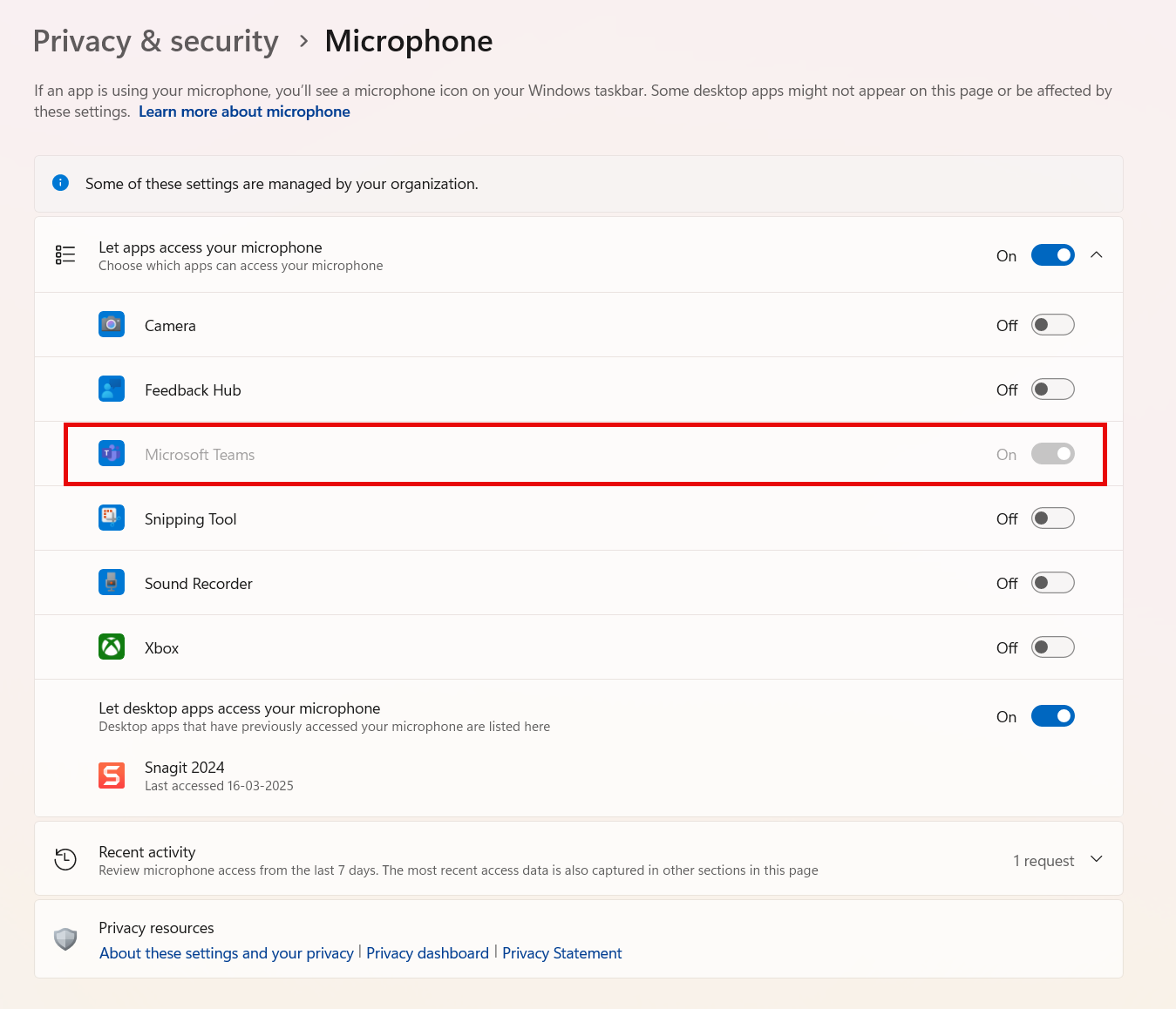
Microsoft Teams are set to allow microphone use. The rest of the settings are left for the end user to change themselves.
Conclution:
You can be in control of many Windows settings on your end users devices. This control is possible as long as you find the right policy settings. I always recommend configuring Windows for security and also minimizes the popups that the end user needs to attend to on their corporate devices.
I hope that this blogpost helps you, if your end users have been complaining about the popup when Microsoft Teams starts on their device.

 Cloud First