
Whether you have ten employees or ten thousand, the Volume Purchase Program (VPP) makes it simple to find, buy, and distribute apps and books to meet your every business need.
First signup to Apple DEP at deploy.apple.com – this requires a new account with out an existent AppleID.
In the Intune console go to VPP enrollment
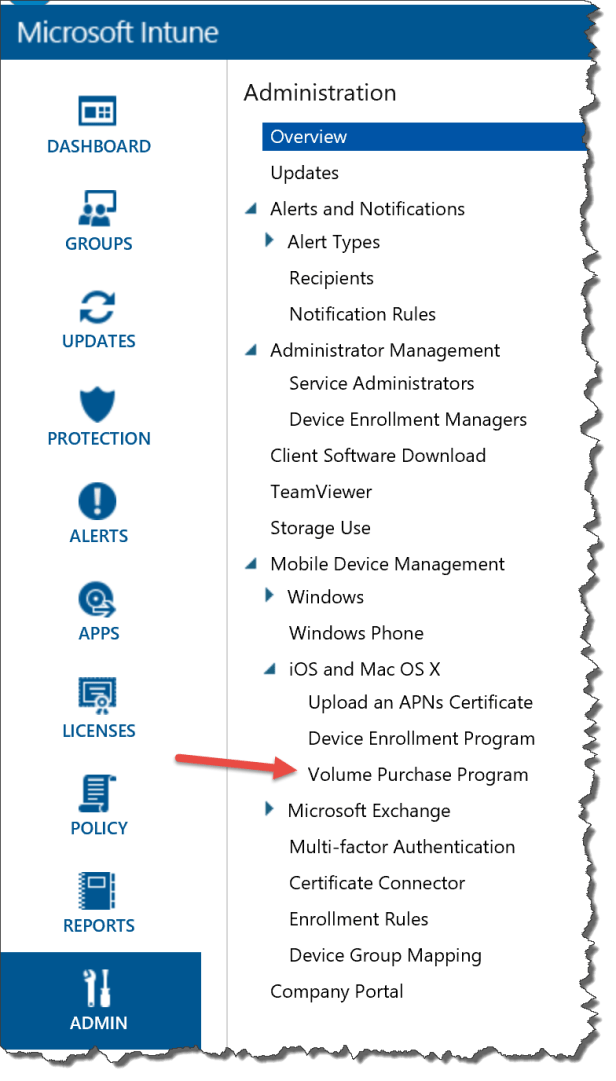
Download the Apple VPP Token

Start by Enroll into the VPP program
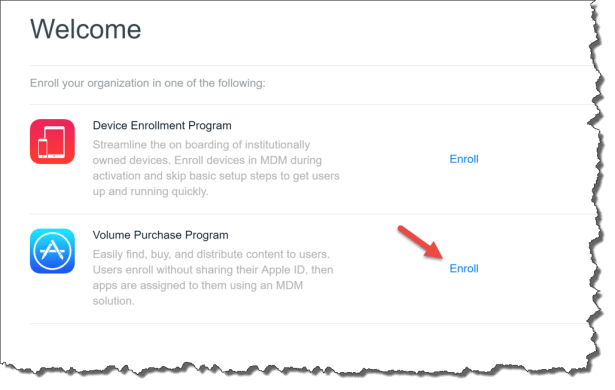
Enter your details

Select Download Token

Save the VPP token that you need to upload into Intune

In the Intune Console select Upload the VPP token

Browse for the previous downloaded VPP Token

Enter the Apple ID and select Upload

Select “I understand that this selection is permanent and cannot be changed”
Select Yes

Now the VPP is configured into Intune
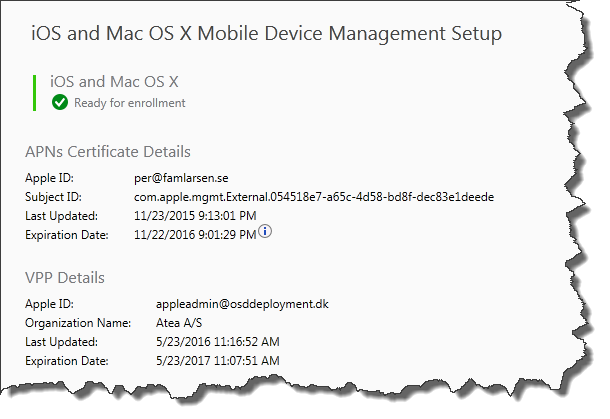
Now you are ready to login to the Apple Volume purchase Program and buy applications
https://volume.itunes.apple.com
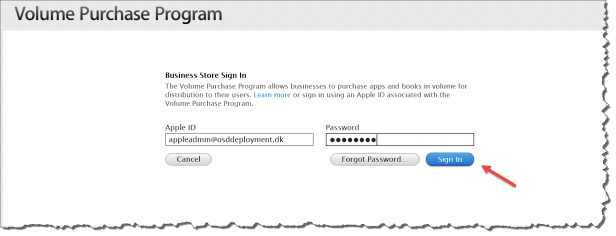
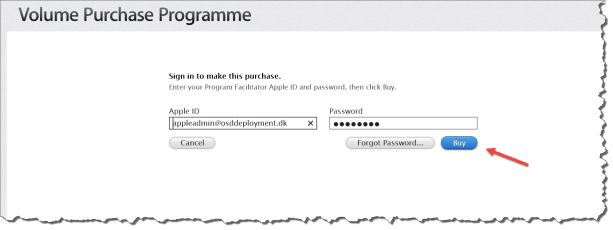
Login to the Business Volume Purchase Program
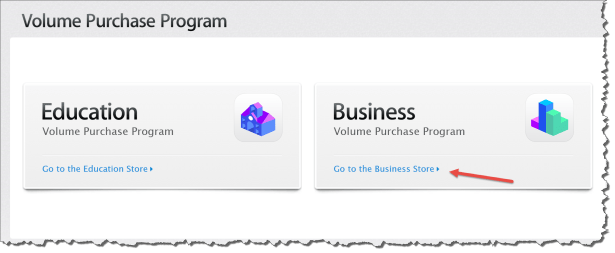
Signin with the AppleID created for this purpose
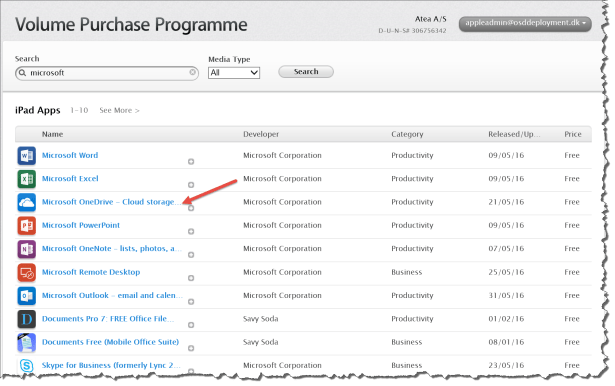
Find the app you want to purchase
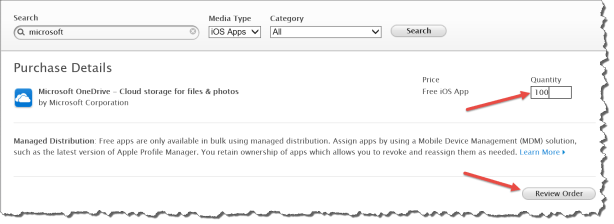
Select a quantity and review ordre
Select place order
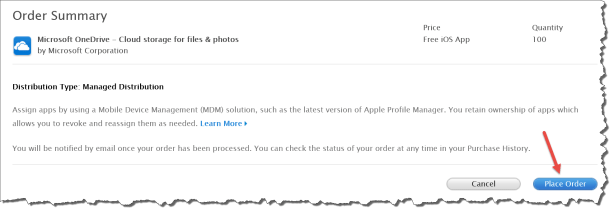
Select Buy
Your order is complete

Go into the Intune Console – Admin – IOS and Mac OS X – Volume Purchase Program
Select Sync Now – the sync schedule is every 12 hours
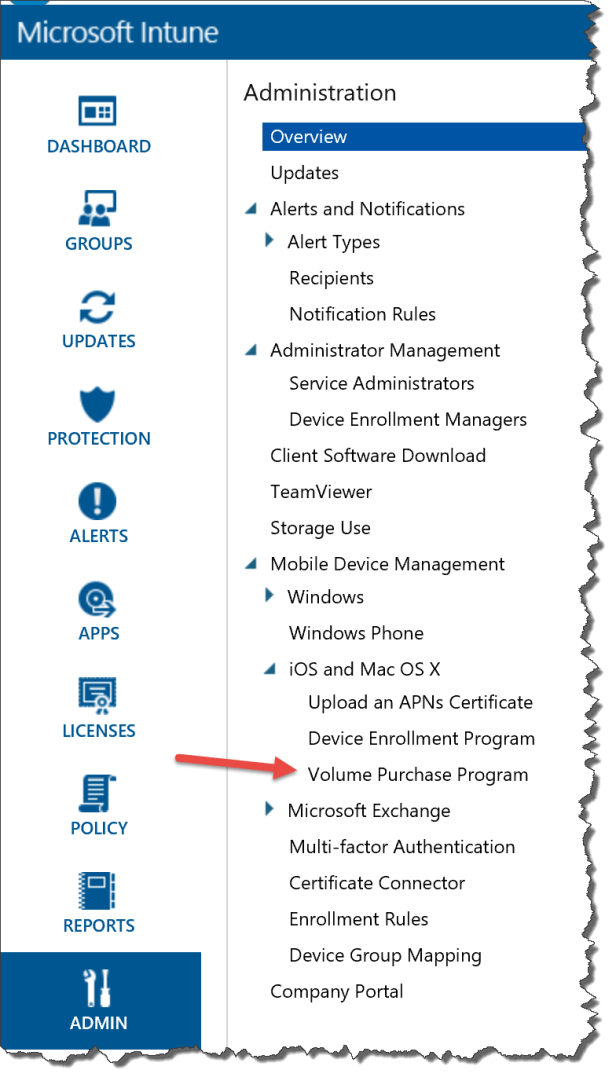
Select Sync Now – the sync schedule is every 12 hours
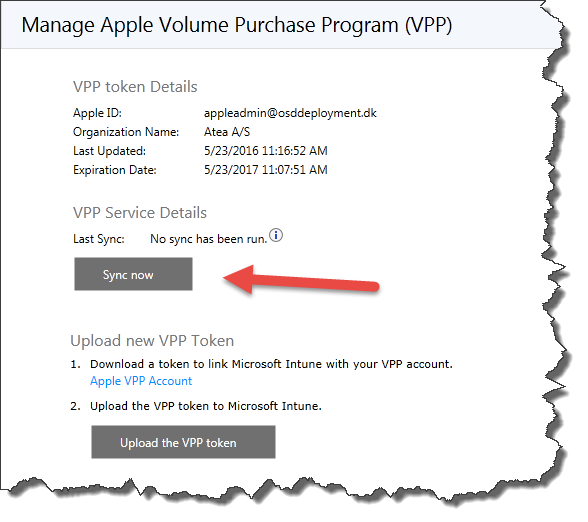
Select Close

Now you are ready to deploy the App to a user group
Go into App – Volume Purchased Apps
All Apps for volume Store’s are in here – both Windows Store for Business and Apple Business Volume Purchase Program
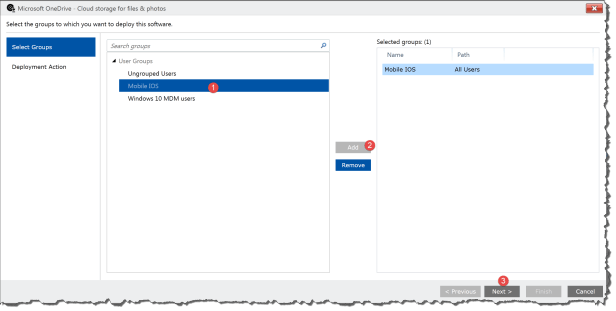
Select the previous purchased app
Select Manage Deployment
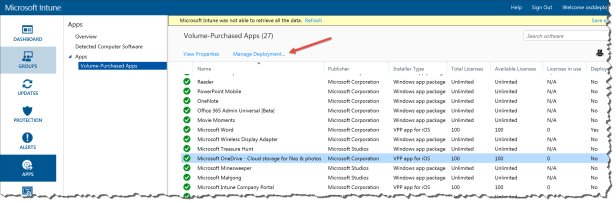
- Select user group
- Select Add
- Select Next
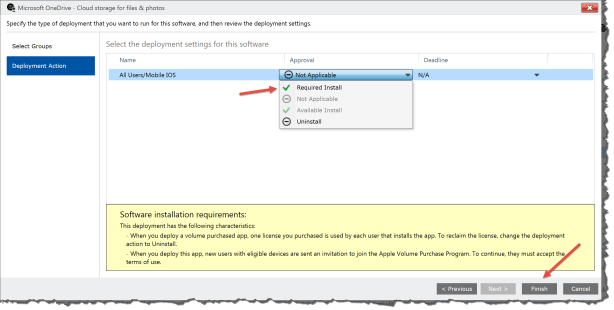
Select Required Install
Select Finish
Be award that Intune is not supporting the full functions of Apple VPP at this moment – the function to deploy to a devices is not implemented.
That means that a AppleID is still needed on the IOS device. Please vote on the user voice “Apple VPP device targeting, so Apple ID not required”

 Cloud First