
With AzureAD joined and Intune MDM controlled Windows 10 devices I like to provide the user access to the company portal.
If this is a 1:1 device I will just deploy the Company Portal App with intune to the user.
But in a scenario where there is many users on 1 device – we need to provisioned the Company Portal App as part of a image. In this blogpost I will show how it is done with MDT.
Before we get started there is some prerequisite that need to be in place.
We need a Azure AD that allows us to signup for Microsoft Windows Store for Business.
The Windows Store for Business needs to be configured.
First login in to the Windows Store for Business with a global admin.
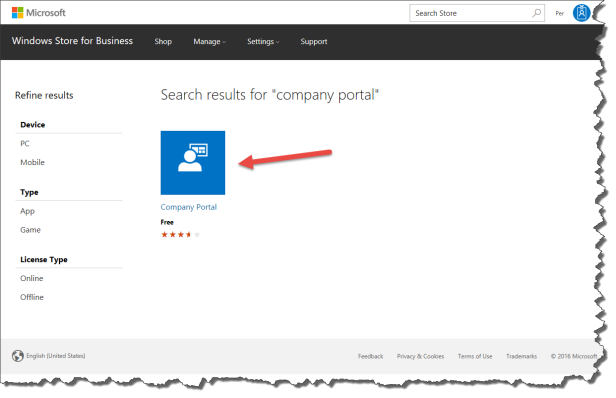
Search for Company Portal.
Select the Company Portal App
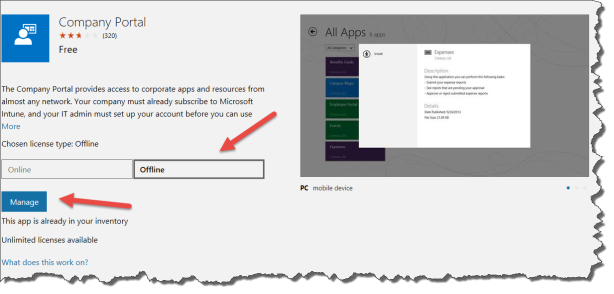
Then get the APP – if you like in my case already own the app then select Offline and manage
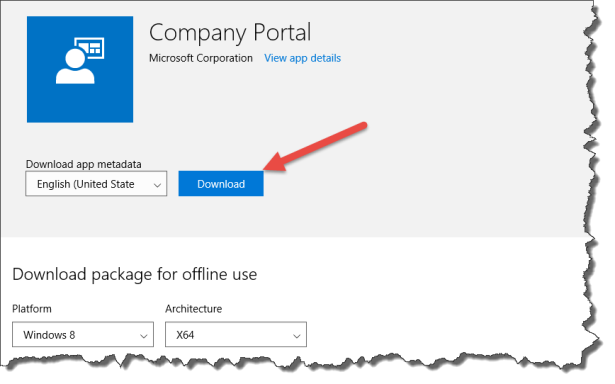
Then Download the App
Generate the Unencoded licens
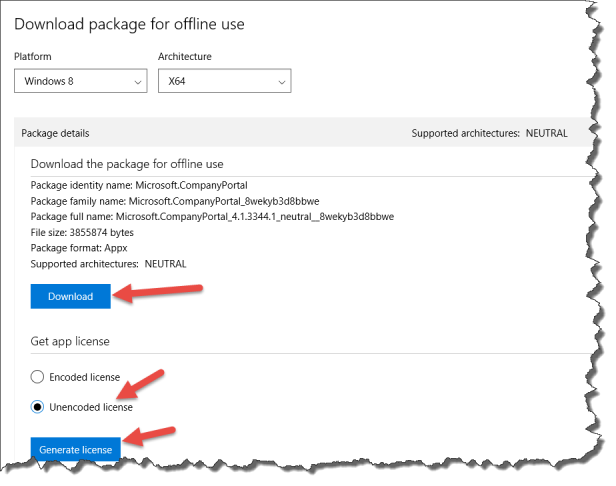
Save the .xml file
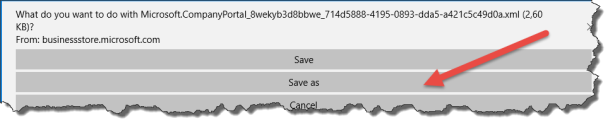
Now you have the Company Portal App file and license file ready to create a deployment packages in the deployment system – in this case MDT.
Creating the Company Portal as an App in the deployment system – in this case MDT.
I start by creating a folder with the App name: Microsoft.CompanyPortal
In the folder I create a install script file and a source folder
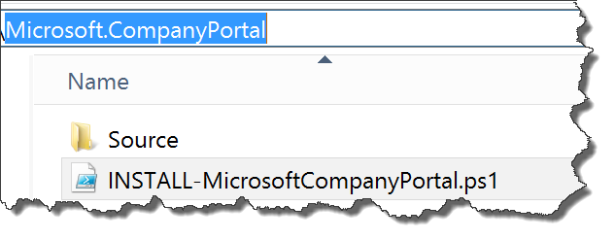
In the source folder put the previous downloaded app and license file

The install script can look like this – there is many ways to create a install script to provisioned and Appx packaged.
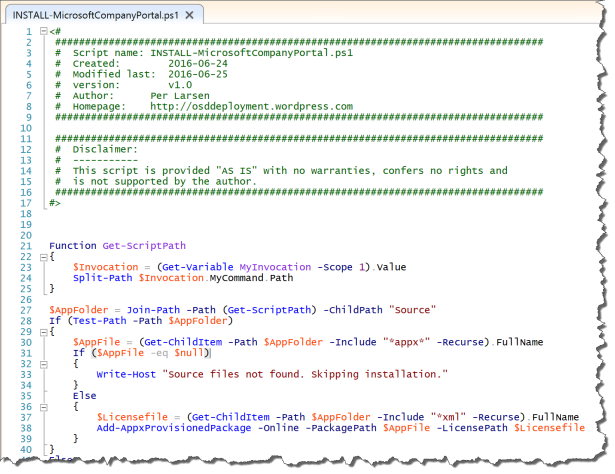
<#
##################################################################################
# Script name: INSTALL-MicrosoftCompanyPortal.ps1
# Created: 2016-06-24
# Modified last: 2016-06-25
# version: v1.0
# Author: Per Larsen
# Homepage: https://osddeployment.wordpress.com
##################################################################################
##################################################################################
# Disclaimer:
# ———–
# This script is provided “AS IS” with no warranties, confers no rights and
# is not supported by the author.
##################################################################################
#>
Function Get-ScriptPath
{
$Invocation = (Get-Variable MyInvocation -Scope 1).Value
Split-Path $Invocation.MyCommand.Path
}
$AppFolder = Join-Path -Path (Get-ScriptPath) -ChildPath “Source”
If (Test-Path -Path $AppFolder)
{
$AppFile = (Get-ChildItem -Path $AppFolder -Include “*appx*” -Recurse).FullName
If ($AppFile -eq $null)
{
Write-Host “Source files not found. Skipping installation.”
}
Else
{
$Licensefile = (Get-ChildItem -Path $AppFolder -Include “*xml” -Recurse).FullName
Add-AppxProvisionedPackage -Online -PackagePath $AppFile -LicensePath $Licensefile
}
}
Else
{
Write-Host “Source files not found. Skipping installation.”
}
Now we are ready to create the Application in MDT
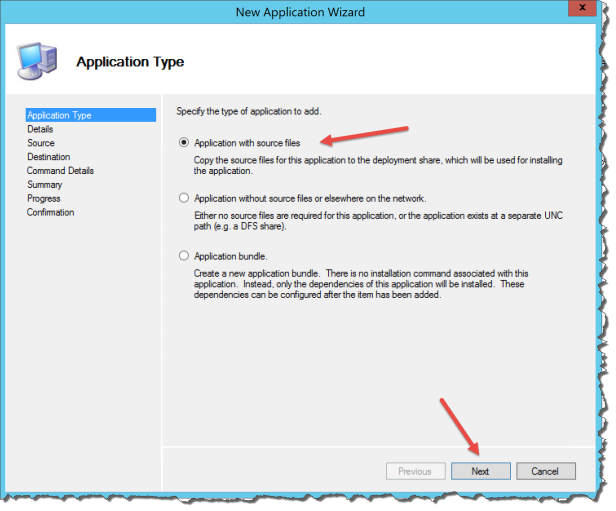
Select New Application in the Deployment Workbench
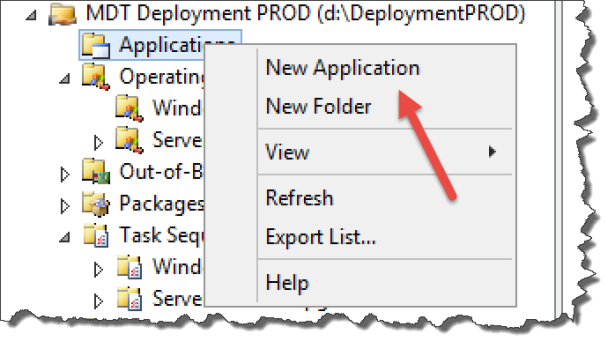
Click Next
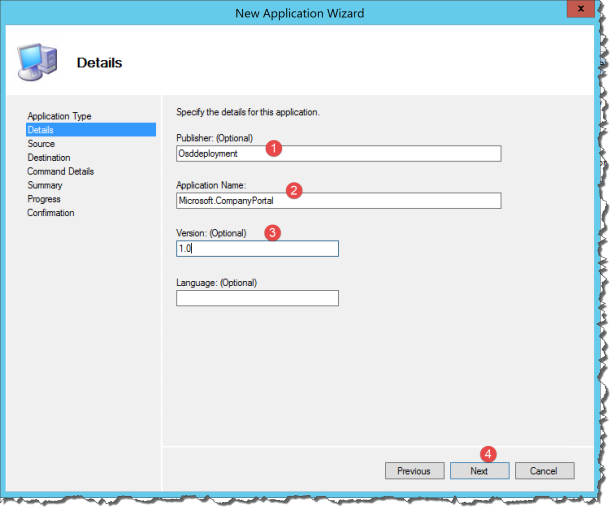
- Enter a Publisher (Optional)
- Enter a Application name “Microsoft.CompanyPortal”
- Enter Version (Optional)
- Click Next
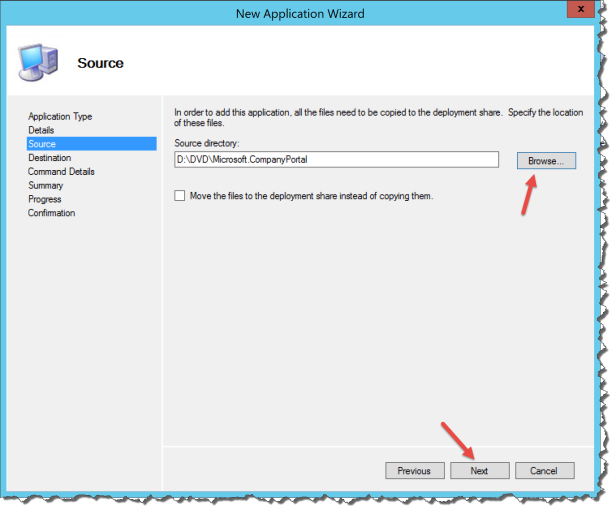
Browse for the previous created folder with the Company Portal
Click Next
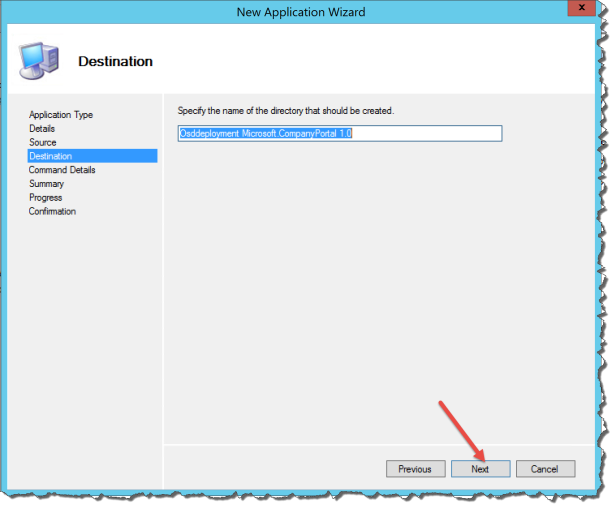
Click Next
Enter the Command line installation string:
%SYSTEMROOT%\System32\WindowsPowerShell\v1.0\powershell.exe -NoProfile -ExecutionPolicy bypass -File “INSTALL-MicrosoftCompanyPortal.ps1”
Click Next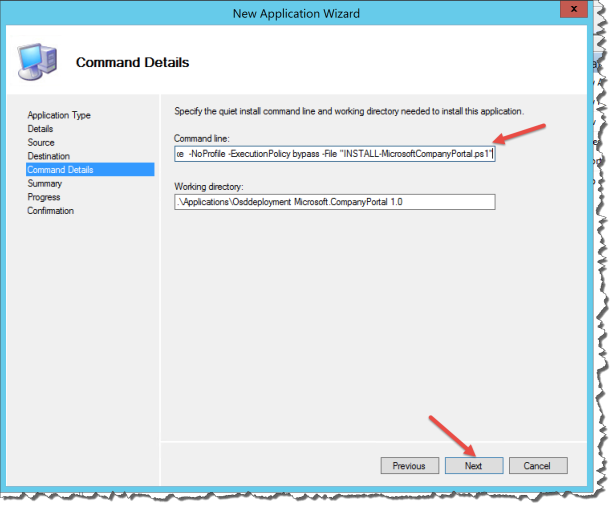
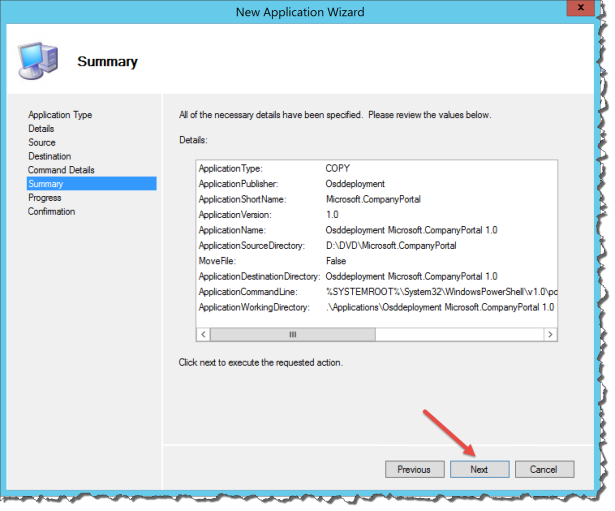
Click Next
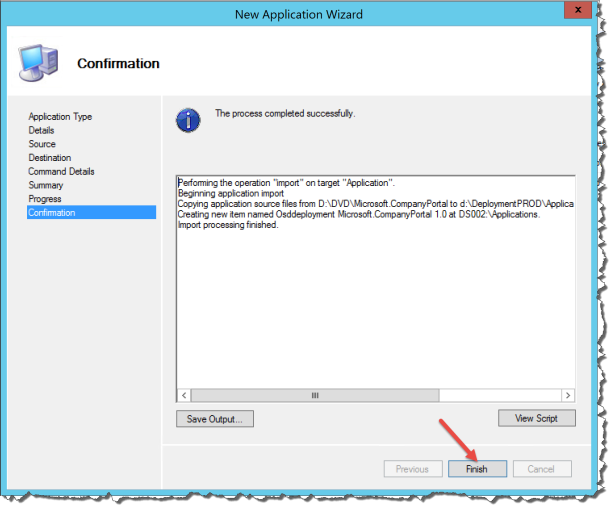
Click Finish
Now go into the MDT Task Sequence and application just created
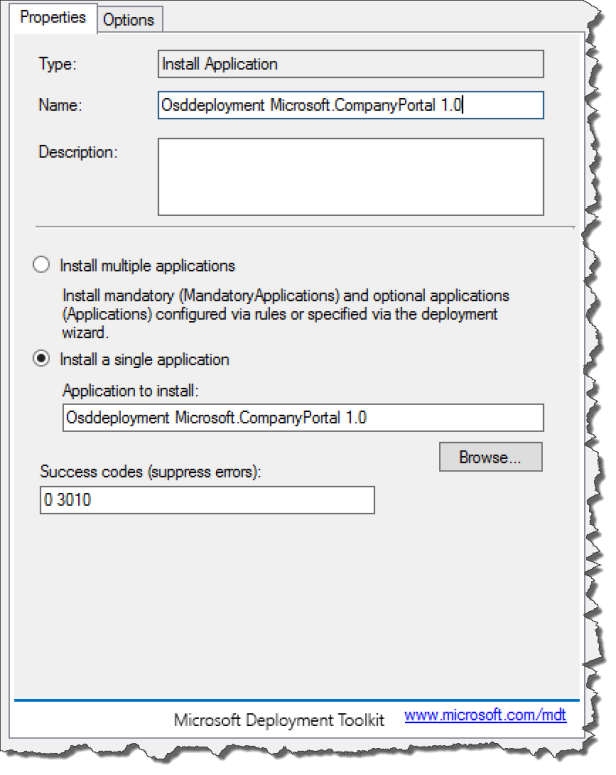
Now deploy Sequence to a Device
When the OS deployment is finished then we can make control to see if the Company Portal is provisioned in the Windows 10 OS by running this command:
Get-AppxProvisionedPackage -Online

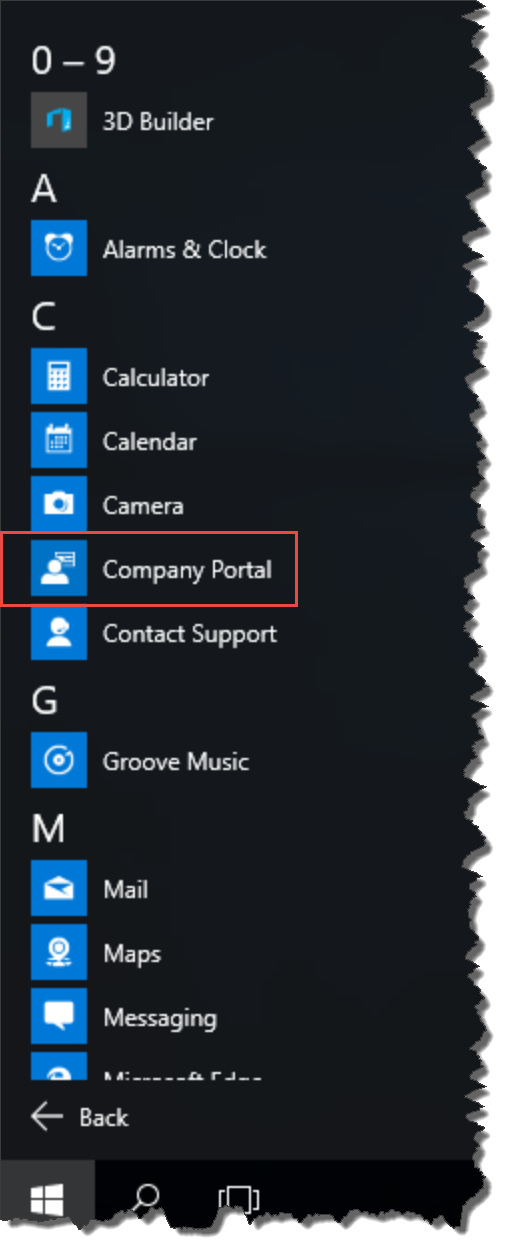
The Company Portal will now be installed on any new user that login on the device.

 Cloud First