
With Windows 10 1607 there is a new feature called SharedPC. SharedPC is applying to Windows 10 Pro, Pro Education, Education, and Enterprise.
It is not possible to deploy settings to create a SharedPC with a GPO – so there for we need another solution. With use of the Windows Imaging and Configuration Designer (ICD) tool from Windows ADK https://developer.microsoft.com/en-us/windows/hardware/windows-assessment-deployment-kit we can create a Custom Windows Image.
Does this means “Build and Capture” a image is gone – the answer both yes and no – In some cases the one makes more sense then the other. In this case a Custom Windows Image created by the ICD tool makes sense.
What is Shared PC mode:
A Windows 10 PC in shared PC mode is designed to be management- and maintenance-free with high reliability. In shared PC mode, only one user can be signed in at a time. When the PC is locked, the currently signed in user can always be signed out at the lock screen. Users who sign-in are signed in as standard users, not admin users.
Start the Windows Imaging and Configuration Designer (ICD)

Click on “Windows Image Customization”

Give your new project a name: “Windows 10 EDU EN SharedPC (1607)”
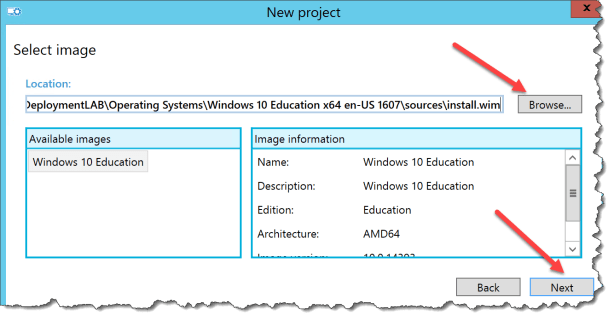
Click Next

Click Next

Click Browse and point to the original install.wim file
Click Next
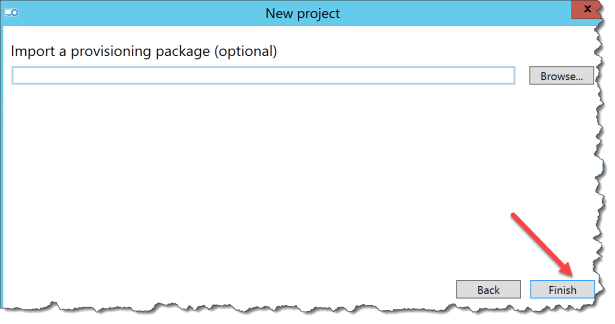
Click Finish
Change view to : All Settings
Search for “SharedPC”
Select EnableSharedPCMode
Select True

If you what other settings in your custom Windows image – then create them now
Then it is time to create your Production media
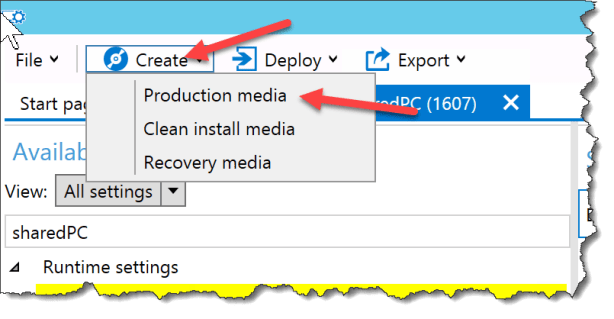
Click Create
Select Production media
Click Next

Click Next
Note: If you plan to deploy this image to devices with a small OS disk then select yes in the “Enable Compact OS”
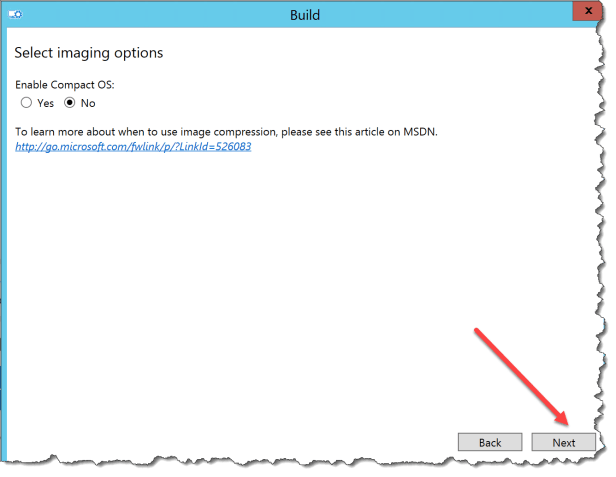
Click Next
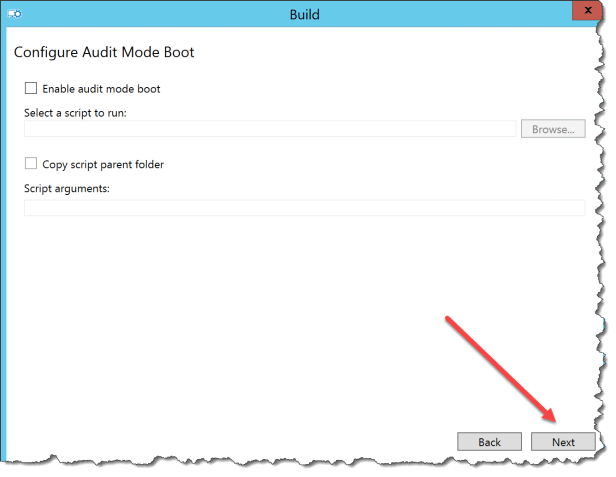
Select “Save to a folder”
Click Next

Click Browse and point to a pre created folder
Click Next
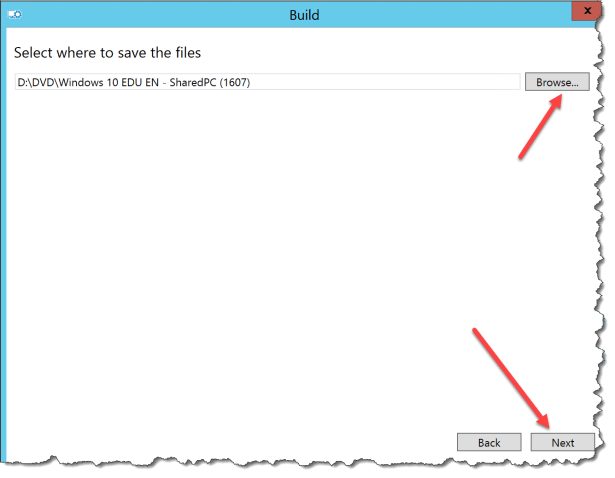
Click Build

Click Finish

Now you have a media folder that looks like a Windows 10 ISO media

In the sources folder there is also a install.wim – this wim file can you import into MDT as a custom image or into SCCM as a Operating System Images. In both cases you can deploy it with a normal deployment Task Sequence, join the domain and then the SharedPC mode is enabled on a domain joined device.

 Cloud First
Excellent post now complementary this post with osdimg we can create an iso file with this option
oscdimg -bD:\sharedpc(folder)\boot\Etfsboot.com -u2 -h D:\sharedpc(folder)\ D:\Win10.iso
Good stuff, but I only want to manage one single media for my entire estate. I would prefer to apply the provisioning profile to the machine via SCCM post build, for example if the machine is in a particular OU or group. Currently this appears to not be possible.
Thank you for this. I’ve followed your process above to create a custom .wim with Shared PC enabled using the Windows 10 EDU 1607 install.wim, however after I deploy the newly created wim with MDT I end up with the usual, out of the box Windows 10 machine, Shared PC is not enabled. Maybe I’m missing something obvious here?
I know Shared PC is not enabled because 1) I set ‘EnableAccountManager” = TRUE, I’ve filled C:\ and accounts are not being purged and 2) I set ‘AccountModel’ = Domain-joined and guest and I don’t have the guest button in the bottom-left of the login screen.
Dont see Windows Image customizations on the new ICD version
I thnik that Micrisoft has removed that option
Enjoyed reading the article above, really explains everything in detail,the
guide is very interesting and effective. Thank you and good luck for the posts.
King regards,
Boswell Dencker