
At Ignite it was announced that Windows Insider Program for Business now has policy settings with Windows 10 so that we can start deploying Windows Insider build in our organization in a controlled way.
Why is this important – Microsoft is releasing new build of Windows twice a year and if you want you LOB apps tested on the new release before that. Then you can have some of your users doing Windows Insider testing, and have them registered with our Azure Active Directory.
First you have to be a Insider for Business then you can sig your organization, then you can register your domain.
Start at Windows Insider Program for Business and login with your global admin

You have to accept the terms of this agreement and click submit

Then you have to click “Find out more about domain administration”
The requirement for register you domain:
- A Global Admin in Azure Active Directory
- Windows 10 1703 or later
Start at Windows Insider Program for Business and login with your global admin

Click “Find out how to register”

Click “Register your organization domain”

You have to accept the terms of this agreement and click register
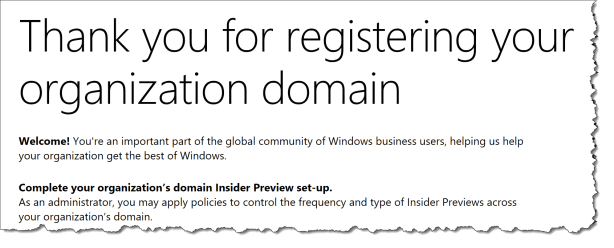
Then your ready to create or deploy a Widows Update policy with MDM or GPO.
In this blogpost I will show how to do it with Intune.
To set the policies with Intune you need to create a Windows 10 and later custom configuration profile.
This can be done with PowerShell or manuelt – see the script below.

The settings that needs to be set is:
OMA-URL : ./Vendor/MSFT/Update/ManagePreviewBuilds
Data Type : Integer
Value : 2
MDM Values:
0-Disable preview builds
1-Disable preview builds once next release is public
2-Enable preview builds
3-Preview builds are left to user selection (default)
OMA-URL : ./Vendor/MSFT/Update/BranchReadinessLevel
Data Type : Integer
Value : 2
2 {0x2} – Preview Builds – Fast (default)
4 {0x4} – Preview Builds – Slow
8 {0x8} – Release Preview
./Vendor/MSFT/Policy/Config
OMA-URL : ./Vendor/MSFT/Policy/Config/System/AllowTelemetry
Data Type : Integer
Value : 2
0 – Security. Information that is required to help keep Windows more secure, including data about the Connected User Experience and Telemetry component settings, the Malicious Software Removal Tool, and Windows Defender. Note: This value is only applicable to Windows 10 Enterprise, Windows 10 Education, Windows 10 Mobile Enterprise, Windows 10 IoT Core (IoT Core), and Windows Server 2016. Using this setting on other devices is equivalent to setting the value of 1.
1 – Basic. Basic device info, including: quality-related data, app compatibility, app usage data, and data from the Security level.
2 – Enhanced. Additional insights, including: how Windows, Windows Server, System Center, and apps are used, how they perform, advanced reliability data, and data from both the Basic and the Security levels.
3 – Full. All data necessary to identify and help to fix problems, plus data from the Security, Basic, and Enhanced levels.
<#
.COPYRIGHT
Copyright (c) Microsoft Corporation. All rights reserved. Licensed under the MIT license.
See LICENSE in the project root for license information.
#>
####################################################
function Get-AuthToken {
<#
.SYNOPSIS
This function is used to authenticate with the Graph API REST interface
.DESCRIPTION
The function authenticate with the Graph API Interface with the tenant name
.EXAMPLE
Get-AuthToken
Authenticates you with the Graph API interface
.NOTES
NAME: Get-AuthToken
#>
[cmdletbinding()]
param
(
[Parameter(Mandatory=$true)]
$User
)
$userUpn = New-Object "System.Net.Mail.MailAddress" -ArgumentList $User
$tenant = $userUpn.Host
Write-Host "Checking for AzureAD module..."
$AadModule = Get-Module -Name "AzureAD" -ListAvailable
if ($AadModule -eq $null) {
Write-Host "AzureAD PowerShell module not found, looking for AzureADPreview"
$AadModule = Get-Module -Name "AzureADPreview" -ListAvailable
}
if ($AadModule -eq $null) {
write-host
write-host "AzureAD Powershell module not installed..." -f Red
write-host "Install by running 'Install-Module AzureAD' or 'Install-Module AzureADPreview' from an elevated PowerShell prompt" -f Yellow
write-host "Script can't continue..." -f Red
write-host
exit
}
# Getting path to ActiveDirectory Assemblies
# If the module count is greater than 1 find the latest version
if($AadModule.count -gt 1){
$Latest_Version = ($AadModule | select version | Sort-Object)[-1]
$aadModule = $AadModule | ? { $_.version -eq $Latest_Version.version }
# Checking if there are multiple versions of the same module found
if($AadModule.count -gt 1){
$aadModule = $AadModule | select -Unique
}
$adal = Join-Path $AadModule.ModuleBase "Microsoft.IdentityModel.Clients.ActiveDirectory.dll"
$adalforms = Join-Path $AadModule.ModuleBase "Microsoft.IdentityModel.Clients.ActiveDirectory.Platform.dll"
}
else {
$adal = Join-Path $AadModule.ModuleBase "Microsoft.IdentityModel.Clients.ActiveDirectory.dll"
$adalforms = Join-Path $AadModule.ModuleBase "Microsoft.IdentityModel.Clients.ActiveDirectory.Platform.dll"
}
[System.Reflection.Assembly]::LoadFrom($adal) | Out-Null
[System.Reflection.Assembly]::LoadFrom($adalforms) | Out-Null
$clientId = "d1ddf0e4-d672-4dae-b554-9d5bdfd93547"
$redirectUri = "urn:ietf:wg:oauth:2.0:oob"
$resourceAppIdURI = "https://graph.microsoft.com"
$authority = "https://login.microsoftonline.com/$Tenant"
try {
$authContext = New-Object "Microsoft.IdentityModel.Clients.ActiveDirectory.AuthenticationContext" -ArgumentList $authority
# https://msdn.microsoft.com/en-us/library/azure/microsoft.identitymodel.clients.activedirectory.promptbehavior.aspx
# Change the prompt behaviour to force credentials each time: Auto, Always, Never, RefreshSession
$platformParameters = New-Object "Microsoft.IdentityModel.Clients.ActiveDirectory.PlatformParameters" -ArgumentList "Auto"
$userId = New-Object "Microsoft.IdentityModel.Clients.ActiveDirectory.UserIdentifier" -ArgumentList ($User, "OptionalDisplayableId")
$authResult = $authContext.AcquireTokenAsync($resourceAppIdURI,$clientId,$redirectUri,$platformParameters,$userId).Result
# If the accesstoken is valid then create the authentication header
if($authResult.AccessToken){
# Creating header for Authorization token
$authHeader = @{
'Content-Type'='application/json'
'Authorization'="Bearer " + $authResult.AccessToken
'ExpiresOn'=$authResult.ExpiresOn
}
return $authHeader
}
else {
Write-Host
Write-Host "Authorization Access Token is null, please re-run authentication..." -ForegroundColor Red
Write-Host
break
}
}
catch {
write-host $_.Exception.Message -f Red
write-host $_.Exception.ItemName -f Red
write-host
break
}
}
####################################################
Function Add-DeviceConfigurationPolicy(){
<#
.SYNOPSIS
This function is used to add an device configuration policy using the Graph API REST interface
.DESCRIPTION
The function connects to the Graph API Interface and adds a device configuration policy
.EXAMPLE
Add-DeviceConfigurationPolicy -JSON $JSON
Adds a device configuration policy in Intune
.NOTES
NAME: Add-DeviceConfigurationPolicy
#>
[cmdletbinding()]
param
(
$JSON
)
$graphApiVersion = "Beta"
$DCP_resource = "deviceManagement/deviceConfigurations"
Write-Verbose "Resource: $DCP_resource"
try {
if($JSON -eq "" -or $JSON -eq $null){
write-host "No JSON specified, please specify valid JSON for the Android Policy..." -f Red
}
else {
Test-JSON -JSON $JSON
$uri = "https://graph.microsoft.com/$graphApiVersion/$($DCP_resource)"
Invoke-RestMethod -Uri $uri -Headers $authToken -Method Post -Body $JSON -ContentType "application/json"
}
}
catch {
$ex = $_.Exception
$errorResponse = $ex.Response.GetResponseStream()
$reader = New-Object System.IO.StreamReader($errorResponse)
$reader.BaseStream.Position = 0
$reader.DiscardBufferedData()
$responseBody = $reader.ReadToEnd();
Write-Host "Response content:`n$responseBody" -f Red
Write-Error "Request to $Uri failed with HTTP Status $($ex.Response.StatusCode) $($ex.Response.StatusDescription)"
write-host
break
}
}
####################################################
Function Test-JSON(){
<#
.SYNOPSIS
This function is used to test if the JSON passed to a REST Post request is valid
.DESCRIPTION
The function tests if the JSON passed to the REST Post is valid
.EXAMPLE
Test-JSON -JSON $JSON
Test if the JSON is valid before calling the Graph REST interface
.NOTES
NAME: Test-AuthHeader
#>
param (
$JSON
)
try {
$TestJSON = ConvertFrom-Json $JSON -ErrorAction Stop
$validJson = $true
}
catch {
$validJson = $false
$_.Exception
}
if (!$validJson){
Write-Host "Provided JSON isn't in valid JSON format" -f Red
break
}
}
####################################################
#region Authentication
write-host
# Checking if authToken exists before running authentication
if($global:authToken){
# Setting DateTime to Universal time to work in all timezones
$DateTime = (Get-Date).ToUniversalTime()
# If the authToken exists checking when it expires
$TokenExpires = ($authToken.ExpiresOn.datetime - $DateTime).Minutes
if($TokenExpires -le 0){
write-host "Authentication Token expired" $TokenExpires "minutes ago" -ForegroundColor Yellow
write-host
# Defining User Principal Name if not present
if($User -eq $null -or $User -eq ""){
$User = Read-Host -Prompt "Please specify your user principal name for Azure Authentication"
Write-Host
}
$global:authToken = Get-AuthToken -User $User
}
}
# Authentication doesn't exist, calling Get-AuthToken function
else {
if($User -eq $null -or $User -eq ""){
$User = Read-Host -Prompt "Please specify your user principal name for Azure Authentication"
Write-Host
}
# Getting the authorization token
$global:authToken = Get-AuthToken -User $User
}
#endregion
####################################################
$Windows = @"
{
"@odata.type": "#microsoft.graph.windows10CustomConfiguration",
"lastModifiedDateTime": "2017-01-01T00:00:35.1329464-08:00",
"assignmentStatus": "Assignment Status value",
"assignmentProgress": "Assignment Progress value",
"assignmentErrorMessage": "Assignment Error Message value",
"description": "Sets WUfB to Windows Insider Fast Ring and Telemetry = 2",
"displayName": "Windows 10 - Custom - WUfB Insider Fast Ring",
"version": 1024,
"omaSettings": [
{
"@odata.type": "microsoft.graph.omaSettingInteger",
"displayName": "ManagePreviewBuilds",
"description": "2-Enable preview builds",
"omaUri": "./Vendor/MSFT/Update/ManagePreviewBuilds",
"value": 2
}
,
{
"@odata.type": "microsoft.graph.omaSettingInteger",
"displayName": "Branch readiness level",
"description": "2 {0x2} - Preview Builds - Fast (default)",
"omaUri": "./Vendor/MSFT/Update/BranchReadinessLevels",
"value": 2
}
,
{
"@odata.type": "microsoft.graph.omaSettingInteger",
"displayName": "Set telemetry",
"description": "2 – Enhanced",
"omaUri": "./Vendor/MSFT/Policy/Config/System/AllowTelemetry",
"value": "2"
}
]
}
"@
####################################################
Add-DeviceConfigurationPolicy -Json $Windows
The user will see the Insider settings in the Windows 10 settings app – under Update & Security – Windows Insider Program
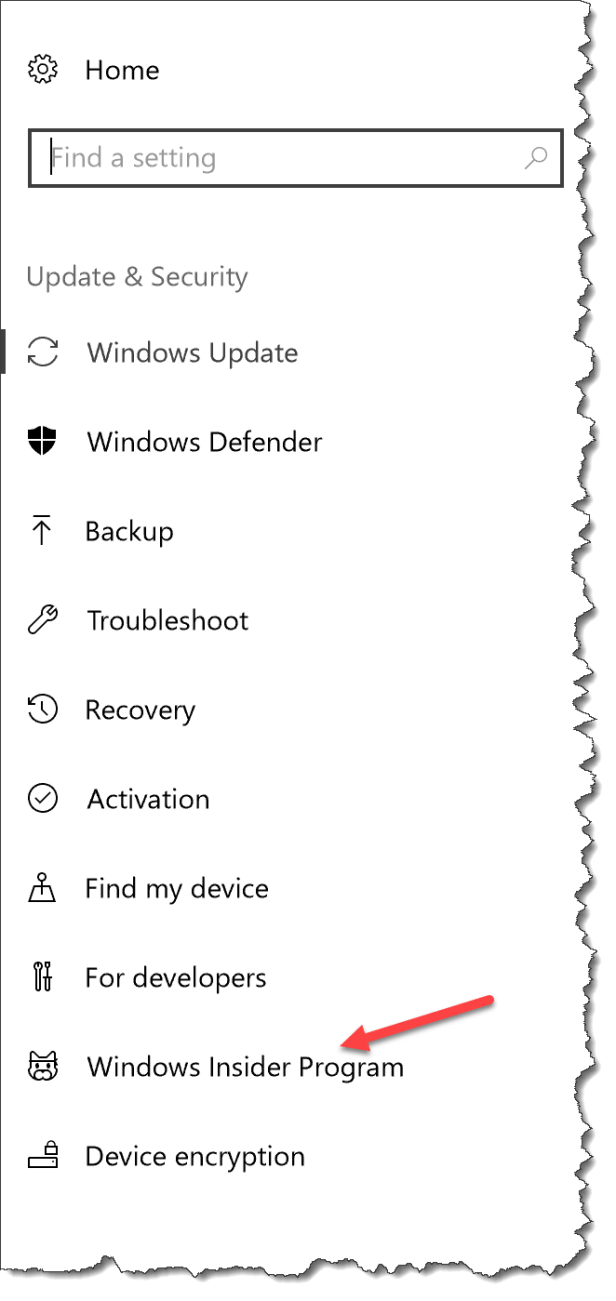
Under Windows Insider Program the user will not be able to jump out of the Insider program, it will be set to active deployment of Windows and set to fast ring

If you want you can create a slow ring as well – and remember also to do the normal Windows Update for Business settings so that you are always on a supported build version of Windows 10

 Cloud First
Hi Per,
First of all: Excellent blog; it’s been of great help implementing InTune 🙂
Are you sure the CSP paths in this post are correct ?
Other Microsoft documentation refers to
“./Vendor/MSFT/Policy/Config/Update/BranchReadinessLevel” as opposed to
“./Vendor/MSFT/Update/BranchReadinessLevel”