
For every Windows 10 build Microsoft has released we are getting more and more MDM settings available in the operation system next version is no exception. In this blog post I will show how to disable the Xbox services with Intune. The new CSP – SystemService will first apply to the next major version of Windows 10 after 1709.
The System Service CSP allows us to configure the startup mode for the following services on Windows:
- Home Group Listener Service
- Home Group Provider Service
- Xbox Accessory Management Service
- Xbox Live Auth Manager Service
- Xbox Live Game Save Service
- Xbox Live Networking Service
It only applies to this version of Windows 10:

Create the profile in Intune:
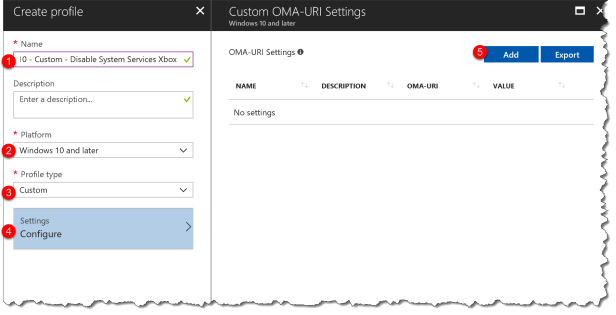
- Name: Windows 10 – Custom – System Services Xbox
- Platform: Windows 10 and later
- Profile type: Custom
- Settings: Select Configure
- OMA-URI Settings: Click Add
In the OMA-URI Settings we create the settings
Xbox Live Auth Manager Service:
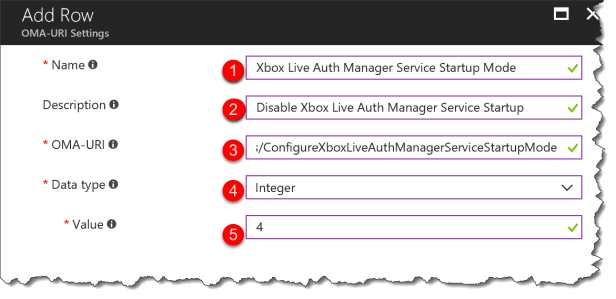
- Name: Xbox Live Auth Manager Service Startup Mode
- Description: Disable Xbox Live Auth Manager Service Startup
- OMA-URI: ./Device/Vendor/MSFT/Policy/Config/SystemServices/ConfigureXboxLiveAuthManagerServiceStartupMode
- Data type: Integer
- Value: 4
The value can be set to: Automaic(2), Manual(3), Disabled(4). Default: Manual
We need to do the same for the rest of the Xbox services.
Xbox Live Game Save Service:
- Name: Xbox Live Game Save Service Startup Mode
- Description: Disable Xbox Live Game Save Service Startup
- OMA-URI: ./Device/Vendor/MSFT/Policy/Config/SystemServices/ConfigureXboxLiveGameSaveServiceStartupMode
- Data type: Integer
- Value: 4
Xbox Live Networking Service:
- Name: Xbox Live Networking Service Startup Mode
- Description: Disable Xbox Live Networking Service Startup
- OMA-URI: ./Device/Vendor/MSFT/Policy/Config/SystemServices/ConfigureXboxLiveNetworkingServiceStartupMode
- Data type: Integer
- Value: 4
Xbox Accessory Management Service:
- Name: Xbox Accessory Management Service Startup Mode
- Description: Disable Xbox Accessory Management Service Startup
- OMA-URI: ./Device/Vendor/MSFT/Policy/Config/SystemServices/ConfigureXboxAccessoryManagementServiceStartupMode
- Data type: Integer
- Value: 4
How does this looks like from the client side:
I have only tested this setting with Windows Insider build 17063.1000
Before the new created profile applies to the devices we can see the Xbox services is set to Manual startup
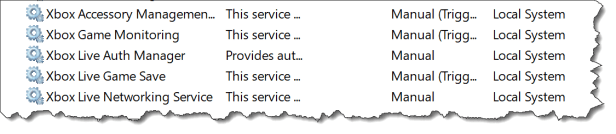
In the Windows 10 MDM Advanced Diagnostic Report we can see the default value before the new created profile applies to the devices

After the profile are successfully assigned to the device we can see the Xbox services is set to Disabled

In the Windows 10 MDM Advanced Diagnostic Report we can see the settings from the profile applies to the devices

At this moment the value set on the devices is now showed correctly in the Advanced Diagnostic Report
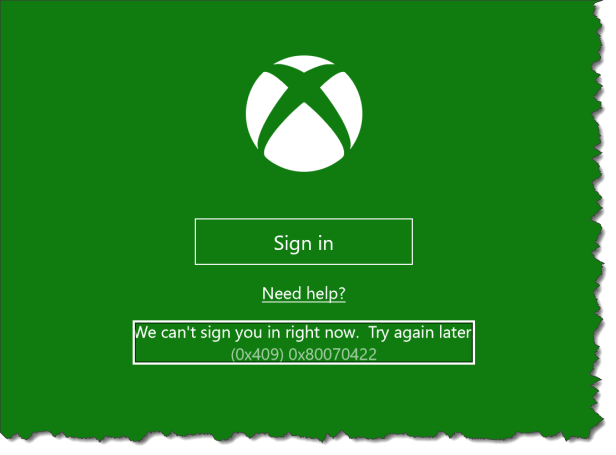
When the Xbox service is disabled the end user cannot sign in to the Xbox service
The profile can also be created with Powershell:
<#

.COPYRIGHT
Copyright (c) Microsoft Corporation. All rights reserved. Licensed under the MIT license.
See LICENSE in the project root for license information.

#>

####################################################

function Get-AuthToken {

<#
.SYNOPSIS
This function is used to authenticate with the Graph API REST interface
.DESCRIPTION
The function authenticate with the Graph API Interface with the tenant name
.EXAMPLE
Get-AuthToken
Authenticates you with the Graph API interface
.NOTES
NAME: Get-AuthToken
#>

[cmdletbinding()]

param
(
    [Parameter(Mandatory=$true)]
    $User
)

$userUpn = New-Object "System.Net.Mail.MailAddress" -ArgumentList $User

$tenant = $userUpn.Host

Write-Host "Checking for AzureAD module..."

    $AadModule = Get-Module -Name "AzureAD" -ListAvailable

    if ($AadModule -eq $null) {

        Write-Host "AzureAD PowerShell module not found, looking for AzureADPreview"
        $AadModule = Get-Module -Name "AzureADPreview" -ListAvailable

    }

    if ($AadModule -eq $null) {
        write-host
        write-host "AzureAD Powershell module not installed..." -f Red
        write-host "Install by running 'Install-Module AzureAD' or 'Install-Module AzureADPreview' from an elevated PowerShell prompt" -f Yellow
        write-host "Script can't continue..." -f Red
        write-host
        exit
    }

# Getting path to ActiveDirectory Assemblies
# If the module count is greater than 1 find the latest version

    if($AadModule.count -gt 1){

        $Latest_Version = ($AadModule | select version | Sort-Object)[-1]

        $aadModule = $AadModule | ? { $_.version -eq $Latest_Version.version }

            # Checking if there are multiple versions of the same module found

            if($AadModule.count -gt 1){

            $aadModule = $AadModule | select -Unique

            }

        $adal = Join-Path $AadModule.ModuleBase "Microsoft.IdentityModel.Clients.ActiveDirectory.dll"
        $adalforms = Join-Path $AadModule.ModuleBase "Microsoft.IdentityModel.Clients.ActiveDirectory.Platform.dll"

    }

    else {

        $adal = Join-Path $AadModule.ModuleBase "Microsoft.IdentityModel.Clients.ActiveDirectory.dll"
        $adalforms = Join-Path $AadModule.ModuleBase "Microsoft.IdentityModel.Clients.ActiveDirectory.Platform.dll"

    }

[System.Reflection.Assembly]::LoadFrom($adal) | Out-Null

[System.Reflection.Assembly]::LoadFrom($adalforms) | Out-Null

$clientId = "d1ddf0e4-d672-4dae-b554-9d5bdfd93547"

$redirectUri = "urn:ietf:wg:oauth:2.0:oob"

$resourceAppIdURI = "https://graph.microsoft.com"

$authority = "https://login.microsoftonline.com/$Tenant"

    try {

    $authContext = New-Object "Microsoft.IdentityModel.Clients.ActiveDirectory.AuthenticationContext" -ArgumentList $authority

    # https://msdn.microsoft.com/en-us/library/azure/microsoft.identitymodel.clients.activedirectory.promptbehavior.aspx
    # Change the prompt behaviour to force credentials each time: Auto, Always, Never, RefreshSession

    $platformParameters = New-Object "Microsoft.IdentityModel.Clients.ActiveDirectory.PlatformParameters" -ArgumentList "Auto"

    $userId = New-Object "Microsoft.IdentityModel.Clients.ActiveDirectory.UserIdentifier" -ArgumentList ($User, "OptionalDisplayableId")

    $authResult = $authContext.AcquireTokenAsync($resourceAppIdURI,$clientId,$redirectUri,$platformParameters,$userId).Result

        # If the accesstoken is valid then create the authentication header

        if($authResult.AccessToken){

        # Creating header for Authorization token

        $authHeader = @{
            'Content-Type'='application/json'
            'Authorization'="Bearer " + $authResult.AccessToken
            'ExpiresOn'=$authResult.ExpiresOn
            }

        return $authHeader

        }

        else {

        Write-Host
        Write-Host "Authorization Access Token is null, please re-run authentication..." -ForegroundColor Red
        Write-Host
        break

        }

    }

    catch {

    write-host $_.Exception.Message -f Red
    write-host $_.Exception.ItemName -f Red
    write-host
    break

    }

}

####################################################

Function Add-DeviceConfigurationPolicy(){

<#
.SYNOPSIS
This function is used to add an device configuration policy using the Graph API REST interface
.DESCRIPTION
The function connects to the Graph API Interface and adds a device configuration policy
.EXAMPLE
Add-DeviceConfigurationPolicy -JSON $JSON
Adds a device configuration policy in Intune
.NOTES
NAME: Add-DeviceConfigurationPolicy
#>

[cmdletbinding()]

param
(
    $JSON
)

$graphApiVersion = "Beta"
$DCP_resource = "deviceManagement/deviceConfigurations"
Write-Verbose "Resource: $DCP_resource"

    try {

        if($JSON -eq "" -or $JSON -eq $null){

        write-host "No JSON specified, please specify valid JSON for the Android Policy..." -f Red

        }

        else {

        Test-JSON -JSON $JSON

        $uri = "https://graph.microsoft.com/$graphApiVersion/$($DCP_resource)"
        Invoke-RestMethod -Uri $uri -Headers $authToken -Method Post -Body $JSON -ContentType "application/json"

        }

    }

    catch {

    $ex = $_.Exception
    $errorResponse = $ex.Response.GetResponseStream()
    $reader = New-Object System.IO.StreamReader($errorResponse)
    $reader.BaseStream.Position = 0
    $reader.DiscardBufferedData()
    $responseBody = $reader.ReadToEnd();
    Write-Host "Response content:`n$responseBody" -f Red
    Write-Error "Request to $Uri failed with HTTP Status $($ex.Response.StatusCode) $($ex.Response.StatusDescription)"
    write-host
    break

    }

}

####################################################

Function Test-JSON(){

<#
.SYNOPSIS
This function is used to test if the JSON passed to a REST Post request is valid
.DESCRIPTION
The function tests if the JSON passed to the REST Post is valid
.EXAMPLE
Test-JSON -JSON $JSON
Test if the JSON is valid before calling the Graph REST interface
.NOTES
NAME: Test-AuthHeader
#>

param (

$JSON

)

    try {

    $TestJSON = ConvertFrom-Json $JSON -ErrorAction Stop
    $validJson = $true

    }

    catch {

    $validJson = $false
    $_.Exception

    }

    if (!$validJson){

    Write-Host "Provided JSON isn't in valid JSON format" -f Red
    break

    }

}

####################################################

#region Authentication

write-host

# Checking if authToken exists before running authentication
if($global:authToken){

    # Setting DateTime to Universal time to work in all timezones
    $DateTime = (Get-Date).ToUniversalTime()

    # If the authToken exists checking when it expires
    $TokenExpires = ($authToken.ExpiresOn.datetime - $DateTime).Minutes

        if($TokenExpires -le 0){

        write-host "Authentication Token expired" $TokenExpires "minutes ago" -ForegroundColor Yellow
        write-host

            # Defining User Principal Name if not present

            if($User -eq $null -or $User -eq ""){

            $User = Read-Host -Prompt "Please specify your user principal name for Azure Authentication"
            Write-Host

            }

        $global:authToken = Get-AuthToken -User $User

        }
}

# Authentication doesn't exist, calling Get-AuthToken function

else {

    if($User -eq $null -or $User -eq ""){

    $User = Read-Host -Prompt "Please specify your user principal name for Azure Authentication"
    Write-Host

    }

# Getting the authorization token
$global:authToken = Get-AuthToken -User $User

}

#endregion

####################################################

$WindowsSystemServices = @"

{

 "@odata.type": "#microsoft.graph.windows10CustomConfiguration",

  "description": "Windows 10 - Custom - System Services Xbox",
  "displayName": "Windows 10 - Custom - System Services Xbox",
  "version": 1,
  "omaSettings": [
    {
      "@odata.type": "microsoft.graph.omaSettingInteger",
      "displayName": "Xbox Live Auth Manager Service Startup Mode",
      "description": "Disable Xbox Live Auth Manager Service Startup",
      "omaUri": "./Device/Vendor/MSFT/Policy/Config/SystemServices/ConfigureXboxLiveAuthManagerServiceStartupMode",
      "value": 4
       }
       ,
             {
      "@odata.type": "microsoft.graph.omaSettingInteger",
      "displayName": "Xbox Live Game Save Service Startup Mode",
      "description": "Disable Xbox Live Game Save Service Startup",
      "omaUri": "./Device/Vendor/MSFT/Policy/Config/SystemServices/ConfigureXboxLiveGameSaveServiceStartupMode",
      "value": 4
       }
       ,
         {
      "@odata.type": "microsoft.graph.omaSettingInteger",
      "displayName": "Xbox Live Networking Service Startup Mode ",
      "description": "Disable Xbox Live Networking Service Startup",
      "omaUri": "./Device/Vendor/MSFT/Policy/Config/SystemServices/ConfigureXboxLiveNetworkingServiceStartupMode",
      "value": 4
       }
     ,
      {
      "@odata.type": "microsoft.graph.omaSettingInteger",
      "displayName": "Xbox Accessory Management Service Startup Mode ",
      "description": "Disable Xbox Accessory Management Service Startup",
      "omaUri": "./Device/Vendor/MSFT/Policy/Config/SystemServices/ConfigureXboxAccessoryManagementServiceStartupMode",
      "value": 4
       }
  ]
  }

"@
####################################################

Add-DeviceConfigurationPolicy -Json $WindowsSystemServices
Read more at:

 Cloud First
Hi Per,
Great addition for your blog post to mention on which Windows Version (home,pro,ent) the policy/csp works.
Thanks
Hey Per,
I’ve tried your script and the policy gives me 4 errors.
The eventlog shows this:
MDM ConfigurationManager: Command failure status. Configuration Source ID: (FF904948-CA80-4857-B0AD-A5671228E4C2), Enrollment Name: (MDMFull), Provider Name: (Policy), Command Type: (Add: from Replace or Add), CSP URI: (./Device/Vendor/MSFT/Policy/Config/SystemServices/ConfigureXboxAccessoryManagementServiceStartupMode), Result: (The system cannot find the file specified.).
If I look inside the MDMDiagnostic Report I can’t find the SystemService header.
I see the services in Services.msc and running 1709 x64 (virtual machine)
It is for the Windows 10 Insider build only – not 1709