
Samsung devices do not support Android Enterprise Zero Touch, but many want the same feature to automatic enroll Samsung devices into Intune with out touching the devices. This is possible for Samsung devices if you are using Samsung KNOX enrollment, that is a free service from Samsung, you just need to set it up and configure automatic enrollment into Intune. Samsung devices do not support Android Enterprise Zero Touch and in a Enterprise that is not always a good thing, but with Samsung KNOX Mobile Enrollment (KME) we can create a similarly experience for the IT admin and the end user. In this blog post I show how the IT admin can get a existent device into KME – I will highly recommend to let your device reseller to the the heavy work on getting the devices in to KME.
In this blog post I will cover how to get Samsung KNOX and configure automatic enrollment into Intune and Android Enterprise. You can also use KNOX enrollment with Device Admin – i will not cover that in this blogpost.
Start by going to Samsung KNOX portal – if you are not signed up then create a Samsung account, like any other service in your IT infrastructure create a service account and do not use a personal account so the the service belongs to the company and not a named user that can leave the company at some point in time.
- Enter Email
- Enter Password
- Click Sign in

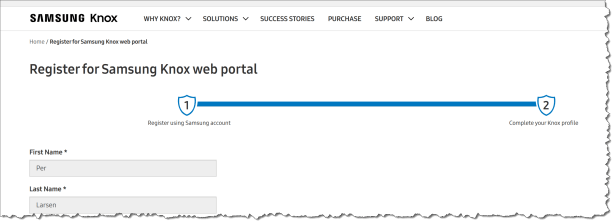
Fill out any required information in the register for Samsung Knox web portal
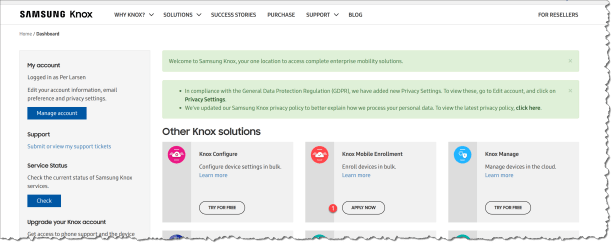
There is a lot of solutions in the Samsung KNOX universe, but we only need the Knox Mobile Enrollment (KME) to get the devices silent into Intune.
- Click Apply now
- Click “I have read and agree to the …”
- Click Summit application

Now you just have to wait until you application has been approved, in my case I got a call from Samsung after 2 days where they was asking what I needed the KME for and who my reseller was. When that was sorted out I had access to KME the next day.
- Click Launch console

The firm time accessing KME you need to do some setup, it takes about 5 minutes and then you are ready to go.
- Click Start

The integration with Intune do require a MDM server URI.
- Click Server URI not required for my MDM
- Click continue

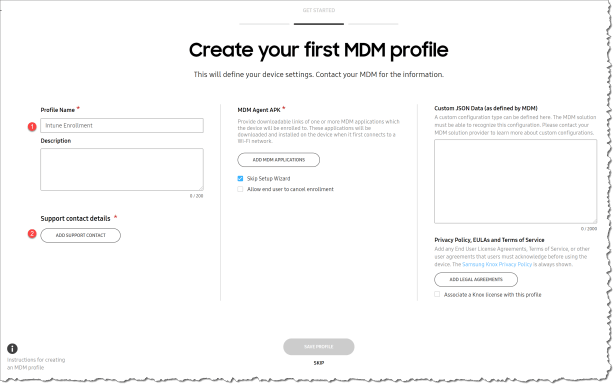
Now you need to create your first MDM profile – this profile allows you to configure how your devices is getting into Intune
- Enter name : Intune Enrollment
- Click add support contact
When you are filling out the support contact details you can see it as preview on the right side
- Enter Company Name
- Enter Company Address
- Enter Support Phone Number
- Enter support Email Address
- Click Save

- Click Add MDM application
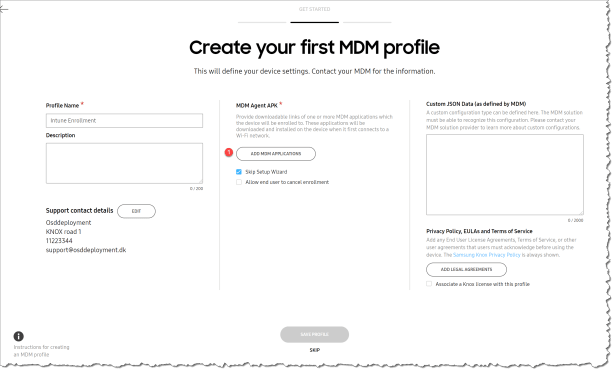
Here you have to choose between Android Enterprise or Android (Device Admin)
Android Enterprise : https://aka.ms/intune_kme_deviceowner
Android : https://aka.ms/intune_kme
- Enter https://aka.ms/intune_kme_deviceowner
- Click Save
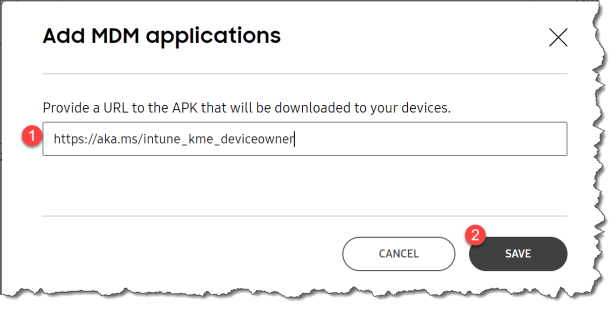
When you have entered the MDM agent APK you get more options:
- MDM APK
- Click Enable this app as a Google Device Owner
- Select Microsoft Intune as supported MDM

After you have saved the profile you get the option to enter your reseller so the reseller can automatic upload new devices that you a purchasing and assign a default profile.
To enter the reseller is optional but I will highly recommend it so you can automated the hole process and allowing you to send the devices directly to the end user.
- Click Skip

Then you are all set and ready to get your Samsung devices into the KME service
- Click Next

And you are ready with your Samsung KNOX setup.
You have to possibility to add your own devices to Samsung KNOX for existent devices.
Prerequisite for IT Admins:
- You need to have applied for and set up a username and password for Knox Mobile Enrollment or Knox Configure before they can use the Knox Deployment App.
- Your devices must support NFC or Bluetooth. Please check your device specification.
- You must have at least one profile configured in the Knox Mobile Enrollment or Knox Configure portal.
You need to download the Knox Deployment Application from Google Play

Start KNOX Deployment Application
- Enter Email address
- Enter Password
- Click Sign In

Then you can move forward to and get your devices in Samsung KNOX
- Select a profile you have created in Samsung KNOX
- Select deployment mode – in my example I use NFC (You can also be Bluetooth)

After the profile deployment to the device you can see the device in your Samsung KNOX portal.

Happy deployment 🙂
Read more:
Automatically enroll Android devices by using Samsung’s Knox Mobile Enrollment

 Cloud First
nevermind, re-read it and it makes sense
Hello Per, did you mean “You can also use KNOX enrollment with Device Owner”? why would you use Device Admin when is getting deprecated?
This seems to be outdated. I don’t get these screenshot i KME
Thanks Per, just would like to confirm one thing, would this enroll the device as Enterprise leaving personal data and google play available or it will convert the whole device to dedicated work “which i don’t want”
I have tried many ways and always ended up with converting the device to dedicated device removing the entire personal data and apps.
Other brands using android are just fine and could enroll them as personal devices with work profile.
You, can get it into Android Enterprise, so it is Dedicated devices, fully managed and Corporate-owned devices with work profile
So i cant add work profile without enrolling it as Dedicated device, right? the only way for that Personal and work profile is to use Android Administrator permission, correct?
Work profile is considered personal, and Samsung and Intune do not support KNOX enrollment of personal devices