
Sometimes I get the question how to the deploy Visio or project to a device that has already install Microsoft 365 apps without uninstalling all the existent binaries as a side effect, so I have created this short blogpost on how to deal with this task.
It is possible to add e.g. Language Packs, Proofing Tools, additional products (like Visio or Project) or apps without updating the installed build, even when a newer build is available in the source location (Office CDN or the specified source path).
In this blogpost I will show you have to leverage this methods to add Visio or Project to a device that is Intune managed and already has Microsoft 365 Apps installed.
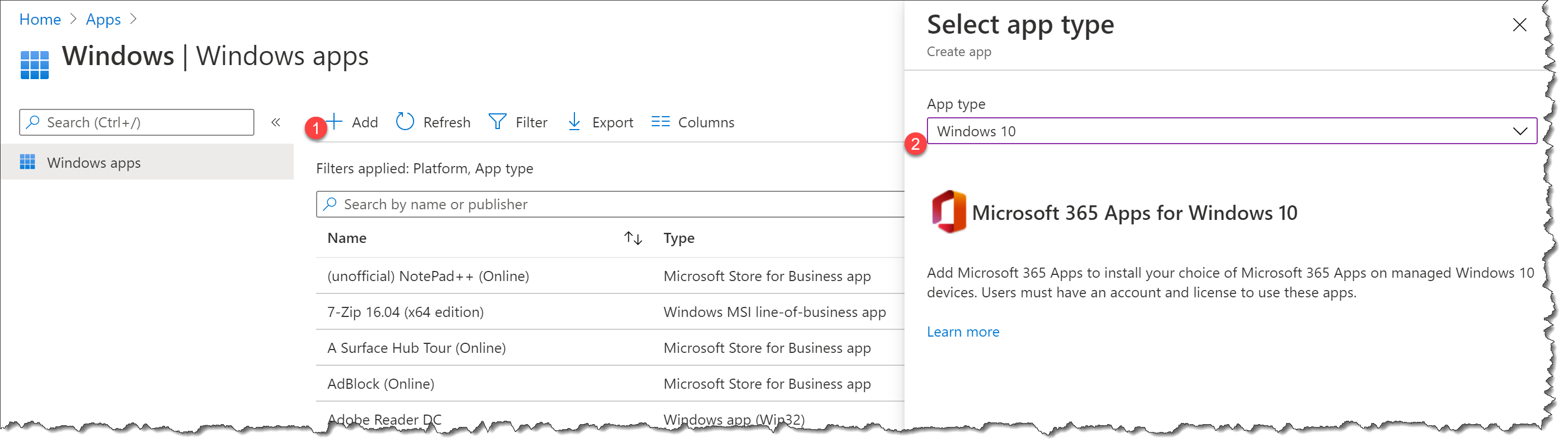
Start the Microsoft Endpoint Manager admin center
- Click Apps
- Click Windows

- Click Add
- Select app type : Windows 10
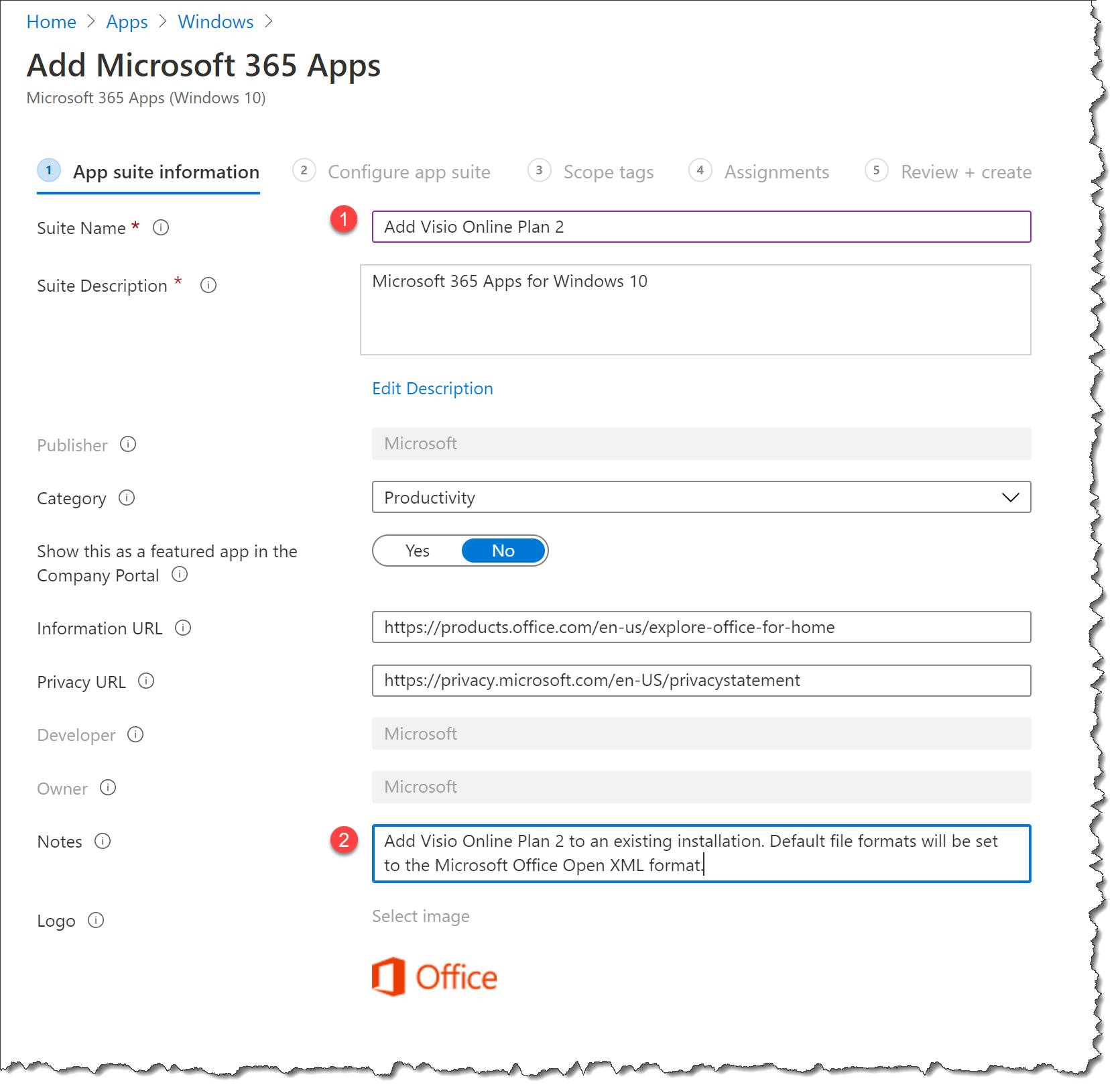
- Suite Name : Add Visio Online Plan 2
- Notes (optional) : Add Visio Online Plan 2 to an existing installation. Default file formats will be set to the Microsoft Office Open XML format.
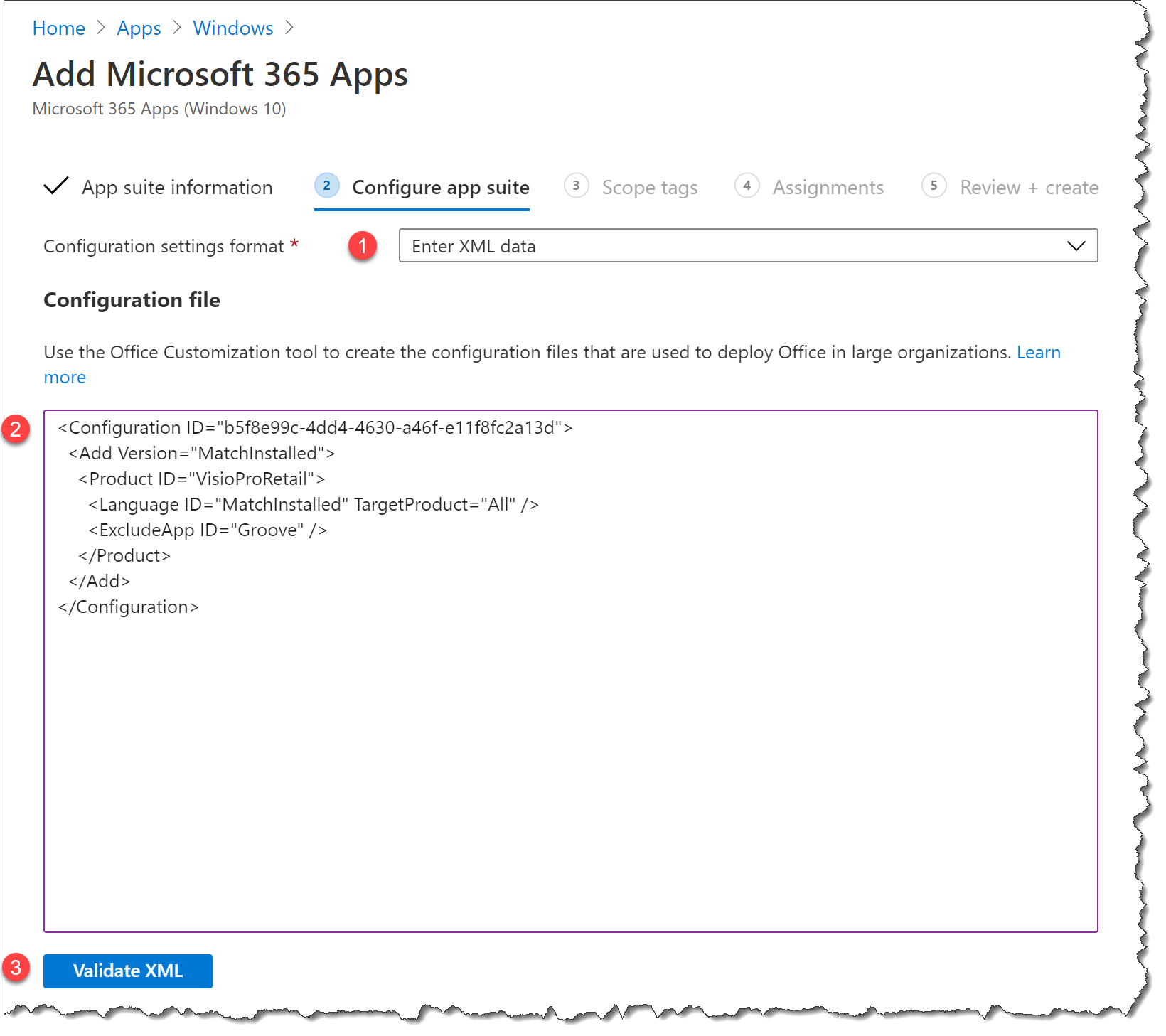
- Configuration settings format : Enter XML data
- Copy the XML data from : https://go.microsoft.com/fwlink/?linkid=2100547
Then you just need to assign it as available or required to a group of users.
Note :
“Add version” will install Visio in the same version as the Microsoft 365 Enterprise apps that are already on the device.
Below here are XML files for Visio and Project both Online and 2019 versions:
Add Visio Online Plan 2
Add Visio Online Plan 2 to an existing installation. Default file formats will be set to the Microsoft Office Open XML format.
https://go.microsoft.com/fwlink/?linkid=2100547
<Configuration ID="b5f8e99c-4dd4-4630-a46f-e11f8fc2a13d">
  <Add Version="MatchInstalled">
    <Product ID="VisioProRetail">
      <Language ID="MatchInstalled" TargetProduct="All" />
      <ExcludeApp ID="Groove" />
    </Product>
  </Add>
</Configuration>
Add Project Online Client
Add Project to an existing installation. Default file formats will be set to the Microsoft Office Open XML format.
https://go.microsoft.com/fwlink/?linkid=2100629
<Configuration ID="c3089e9b-4891-4ccb-b7a1-8ac5f42ee68a">
  <Add Version="MatchInstalled">
    <Product ID="ProjectProRetail">
      <Language ID="MatchInstalled" TargetProduct="All" />
      <ExcludeApp ID="Groove" />
    </Product>
  </Add>
</Configuration>
Add Visio Professional 2019
Add Visio Professional 2019 to an existing installation. Default file formats will be set to the Microsoft Office Open XML format.
https://go.microsoft.com/fwlink/?linkid=2100630
<Configuration ID="bdc49b72-a1ad-419b-9ec0-ffe73f1e596f">
  <Add Version="MatchInstalled">
    <Product ID="VisioPro2019Volume" PIDKEY="9BGNQ-K37YR-RQHF2-38RQ3-7VCBB">
      <Language ID="MatchInstalled" TargetProduct="All" />
      <ExcludeApp ID="Groove" />
    </Product>
  </Add>
</Configuration>
Add Project Professional 2019
Add Project Professional 2019 to an existing installation. Default file formats will be set to the Microsoft Office Open XML format.
https://go.microsoft.com/fwlink/?linkid=2100631
<Configuration ID="537b02cb-90f7-459a-9795-e7ac8a03c606">
  <Add Version="MatchInstalled">
    <Product ID="ProjectPro2019Volume" PIDKEY="B4NPR-3FKK7-T2MBV-FRQ4W-PKD2B">
      <Language ID="MatchInstalled" TargetProduct="All" />
      <ExcludeApp ID="Groove" />
    </Product>
  </Add>
</Configuration>
Happy testing 🙂

 Cloud First
Thanks Per – great article. How does this handle MS Office apps when they are open please.
Unfortunately if any other Office apps are open the additional apps (ie Project or Visio will fail to install whether deployed via Company Portal or not.
The only way I’ve found to get around this is to use the PSAppDeploy Toolkit which then prompts the user to close any O365 apps before installation begins. The installation then completes successfully.
Hi David, how did you get this working? Just create a win32 app in Intune and use the PSappdeploy toolkit that then runs the xml or?
That is also an option
Use ServiceUI.exe from Microsoft Deployment Toolkit (MDT) and setup.exe from Office Deployment Tool
Note: ServiceUI.exe is a tool from MDT that Bring the SYSTEM Process to Interactive Mode.
https://www.microsoft.com/en-us/download/details.aspx?id=54259
https://www.microsoft.com/en-us/download/confirmation.aspx?id=49117
Install command
ServiceUI.exe -process:explorer.exe setup.exe /configure ConfigVisio.xml
Uninstall command
ServiceUI.exe -process:explorer.exe setup.exe /configure UninstallVisio.xml
Install behavior : System
Assignment, Available for enrolled devices: user groups
If you like to shutdown office apps automatically use this line under /ADD in ConfigVisio.xml
If this line is not applied user will be asked for close Office app before it continue.
Not working at all for me.. Tried with Project and Visio
Hi,
I am able to push Visio through Intune with existing office suite which is installed on machine .however, Project online is unable to push through Intune. do you have any suggestion?
We have a similar challenge. If it is ok with legal we plan to deploy Visio and Project to everyone (in addition to the standard 365 apps like Outlook, Word etc.), and only the one who is actually licensed for Visio/Project can use them.
Is there any spesific reason for going with “Enter XML data” instead of “Configuration designer” in Configuration settings format?
Recently during MS Project rollout for a subset of users within large organization faced this issue with multiple languages being deployed than the M365 app suite.
Default Intune options didn’t work at all.
Exactly the same issue as Tijs Boywmans with regards to languages, even though the XML has that to match what is already installed. Some installations produce the 0x00003AFC install failure… could not find MUI file.
This seems to be an issue on Microsoft’s side.
I don’t know what the difference is between a full installation of visio professional 2019 and the offline application that comes with on visio plan 2 license? If i add a visio online plan 2 license to a user, it is more easy to add a second 365 App in intune and assign it to a different group. In that app you just select your office suite and tick “install other apps” and then click visio. If you choose remove already installed versions, it will leave everything alone (cause it is the same version) and then i just add’s the visio professional application.
Thanks for this post! this helped!
Massive Help Thank You !!!
Thanks for this great write up, it has been working pretty well until Fri 29th Oct 2021, when the app installs just fail, they were working fine in the morning (were part of an autopilot image) but when i went to re-image the test machine the build fails on these two apps.
As per MS support engineer we cannot push two office deployment policies from intune to the same device due to kind of limitation. and we got confirm that the best solution for the devices that missing publisher app is to create a new office deployment policy and add all office products “Word,Exel,Powerpoint,Publisher Etc..” and then push it to the devices and the policy will scan and install the missing apps only, in our case the policy will push and install Publisher app only. can you please confirm of Visio or Project deployment based on XML files, Is that supported by Microsoft.
This will also work.
Tested on computers running Office 365 x64 en-uk. (Intune deployed)
User experience: After app is downloaded users will be prompted to close active Office apps before install process is starting (Office GUI from OfficeSetup.exe file)
Note: ServiceUI.exe is a tool from MDT that Bring the SYSTEM Process to Interactive Mode.
Download Microsoft Deployment Toolkit (MDT) x64 or x86
https://www.microsoft.com/en-us/download/details.aspx?id=54259
Install Tools and templates on a technical computer
Copy ServiceUI.exe C:\Program Files\Microsoft Deployment Toolkit\Templates\Distribution\Tools\x64 to Input directory
From a user that have access to Visio or Project, download OfficeSetup.exe for each app from https://portal.office.com/account/?ref=MeControl#
Download Microsoft Win32 Content Prep Tool https://docs.microsoft.com/en-us/mem/intune/apps/apps-win32-prepare
Create IntuneWinAppUtil package
Add ServiceUI.exe and OfficeSetup.exe in Input directory
Note: OfficeSetup.exe is renamed OfficeSetupProject-US-en.exe
Run “I:\IntuneWinAppUtil.exe” -c “I:\Project\InputIntune” -s OfficeSetupProject-US-en.exe -o “I:\Project\OutputIntune”
Create Windows app (Win32)in Intune and add package -> OfficeSetupProject-US-en.intunewin
Install command: ServiceUI.exe -process:explorer.exe OfficeSetupProject-US-en.exe
Uninstall command: something, like uninstall.bat (It should be possible to run setup.exe /configure, in xml remove project)
Install behavior: System
Thank you for this guide – really helpful, it deploys fine for us but we aren’t able to activate them. All other Office products are signed in and licensed and it shows the user account in the tab at the top however when asked to sign in immediately told there are server issues and it can’t authenticate.
Hello, thank you for the script,
Do you have the script for Visio 2021 professional LTSC?
Hello, thank you for the script,
Do you have the script for Visio 2021 professional LTSC?
Nice bllog thanks for posting
Do you have the XML for Visio and Project Professional 2021 Volume Licence