When deploying Office 365 Click-to-Run then I want to remove as many as possible popup for the end users – there for this guide.
First download the “Office 2016 Administrative Template files (ADMX/ADML) and Office Customization Tool” from Microsoft : https://www.microsoft.com/en-us/download/details.aspx?id=49030
Update your GPO Central Store with the downloaded ADMX/ADML files.
First thing that the user see is this
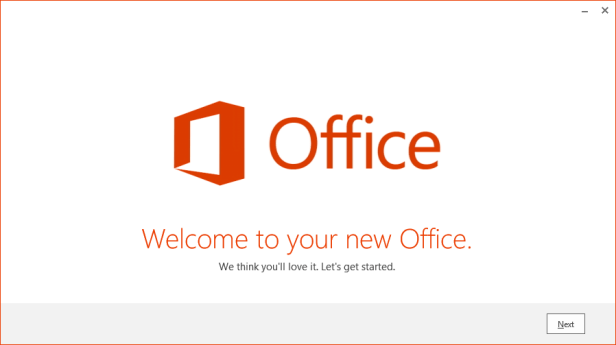
This can be removed by this GPO
User Configuration -> Policies -> Administrative Templates -> Microsoft Office 2016 -> First Run

Then the user get this
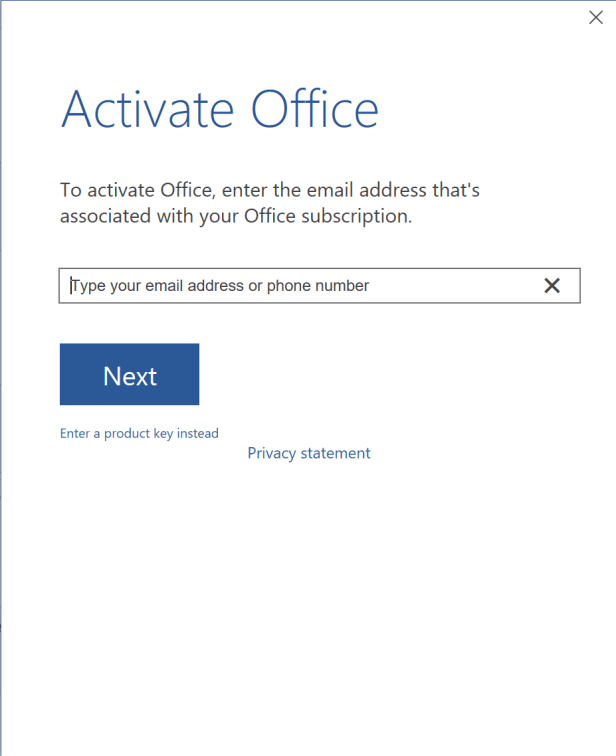
This can be removed by this GPO
User Configuration -> Policies -> Administrative Templates -> Microsoft Office 2016 -> Subscription Activation

Then the user get this
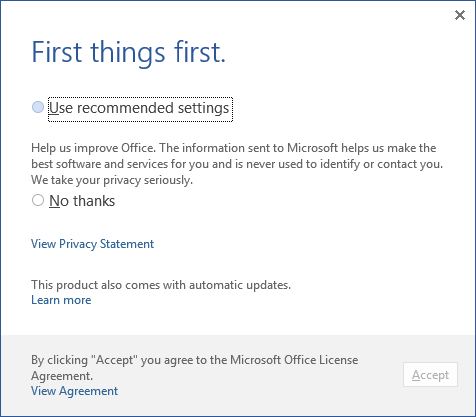
This can be removed this GPO
User Configuration -> Policies -> Administrative Templates -> Microsoft Office 2016 -> Privacy -> Trust Center

Then the user get this

User Configuration -> Preferences -> Windows Settings -> Registry


HKEY_CURRENT_USER
Key path Software\Microsoft\Office\16.0\Registration
Value name AcceptAllEulas
Value type REG_DWORD
Value data 1
And at last we in the EU get this
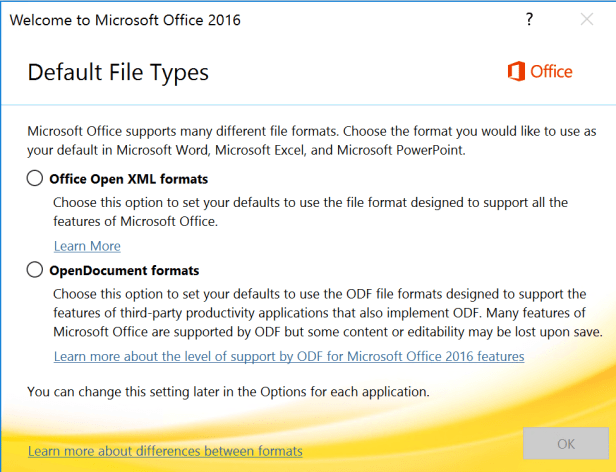 User Configuration -> Preferences -> Windows Settings -> Registry


HKEY_CURRENT_USER
Key path Software\Microsoft\Office\16.0\Common\General
Value name ShownFileFmtPrompt
Value type REG_DWORD
Value data 1
And now all you have to do is deploy you new GPO the Office 2016 users.

 Cloud First
To get the “Default File Types” to disapere work i had to set the path to the policy key:
Software\Policies\Microsoft\Office\16.0\Common\General\ShownFileFmtPrompt
thanks.
Very helpful. Thank you!
Will the clients get activated if you remove the “Activate Office” dialog box?
I figured it out. It does. Thanks for this
Many thanks.
I have a question: What if I want to make “Office Open XML formats” the default option?
Make sure you set the set the following otherwise all the settings listed in the blog are pointless.
User Configuration –> Administrative Templates –> Office 2016 –> Privacy –> Trust Center –> “Disable opt-in wizard on first run” set to Enabled.
Hello gentlemen,
I just set up a GPO for the Office 365 installation by clicking-to-run by following this link: https://osddeployment.dk/2016/04/26/automating-office-365-click-to-run -first-use-with-group-policy /.
But this does not work I have this pop-up still in display: Connectez-vous pour configurer Office
et
Nouveautés de Powerpoint
Could you give me your opinion?
Thank you
Noubissi,
applicability of GPO is depending on your plan on O365.
You need at least ProPlus subscription to use it, O365 Business is not.
Pls refer here: https://answers.microsoft.com/en-us/msoffice/forum/msoffice_o365admin-mso_dep365-mso_o365b/office-365-business-and-group-policy/3934aaaf-80fd-4877-b4f5-148f17e6b34d
Regards,
Hermann
Great instructions for getting rid of all popups!
I have managed to get to zero configuration with the above instructions and this additional reg key.
[HKEY_CURRENT_USER\Software\Microsoft\Office\16.0\Outlook\AutoDiscover]
“ZeroConfigExchange”=dword:00000001
https://techcommunity.microsoft.com/t5/outlook-global-customer-service/zeroconfigexchange-automating-the-creation-of-an-outlook-profile/ba-p/389691
Can the Privacy Policy acceptance dialog be removed via GPO?
Hello Tim,
were you able to find a solution? GPO or Reg location?
Have found a solution:
You must activate this GPO:
User Configuration / Policies / Administrative Templates / Microsoft Office 2016 / Tools | Options | General | Service Options… / Online Content === Online Content Options = enabled, and select Allow Office to connect to the Internet
Now the privacy dialog is no longer there.