
The Device Enrollment Program (DEP) provides a fast, streamlined way to deploy your corporate-owned Mac or iOS devices, whether purchased directly from Apple or through participating Apple Authorized Resellers.
First signup to Apple DEP at deploy.apple.com – this requires a new account with out an existent AppleID.
In the Intune console go to DEP enrollment

Download Encryption Key
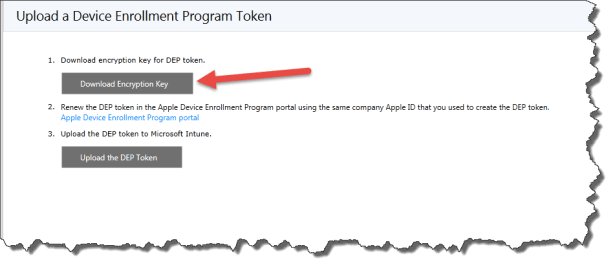
Save the key file

Go to Deploy.apple.com
Select Get Started
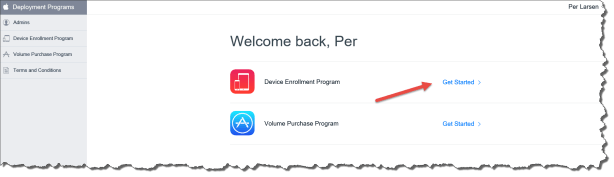
Select Add MDM Server

Give the new MDM system a Name – If this is the only MDM system in DEP then select “Automatically Assign New Devices”

Then you need to upload the Key file previous downloaded from the Intune Portal

Select the downloaded file

Select Next

Download the “Server Token” you need to put into Intune to combine DEP and Intune

Save for latter use

Select Done – and now back to the Intune Portal

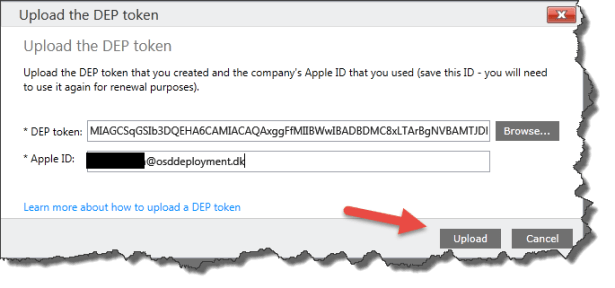
Select “upload the DEP Token”
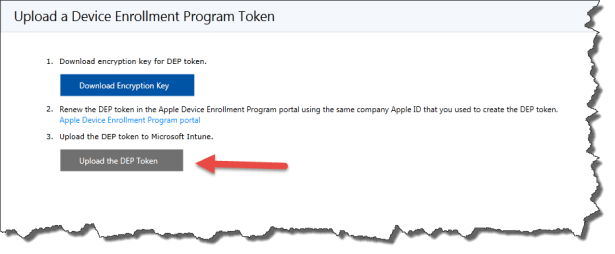
Select Browse
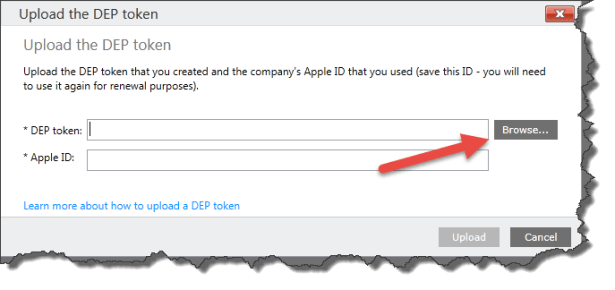
Browse for the previous downloaded file from Apple DEP portal

Enter your AppleID that you used when downloaded the DEP token
Select Upload
And now you have combined Intune with Apple DEP and are ready to create a default profile for DEP enrolled devices
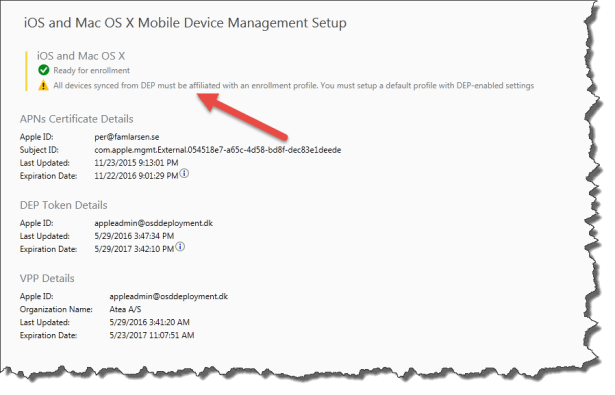
Go to Admin – Policy – Corporate Device Enrollment
Select Add

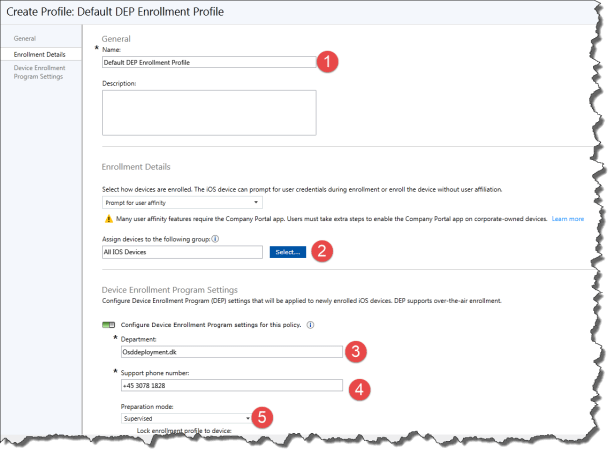
Create a Default DEP enrollment Profile
- Give the profile a name
- Select a assignment group
- Set a Department name
- Set a Support number
- Select Supervised mode
Always use User affinity in my appinion – just remember that :
Many user affinity features require the Company Portal.
Select the settings you need as part of the Assistant panes.
Just remember if you want to deploy IOS Apps with Apple VPP it is only possible to users and there for requires a AppleID on the device!!!

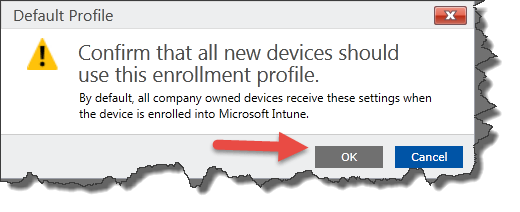
Then set the “Default DEP enrollment Profile” as default

Just Confirm by selection Ok
To test what you just have configured go back to deploy.apple.com find your Apple Device
- Find the Apple Device by Serial Number
- Assign a MDM Server
- Set the Name
- Select Ok

Comfirm by select Ok
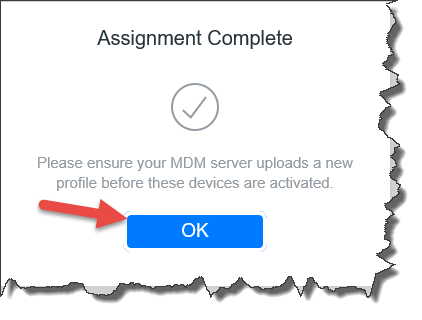
Now you can see your first device on the DEP program

When the DEP and Intune is syncing the next time you have the device in Intune.
The DEP sync is happing every 12 hours.
Now you have to reset your Apple Device – and use the Assistant panes on the device. Every thing you have disabled is not shown to the user.

 Cloud First
Is ADFS a requirement for using Apple DEP with user affinity ?
No, ADFS os not a requeriement
Thanks Per. “DEP with user affinity requires WS-Trust 1.3 Username/Mixed endpoint to be enabled to request user token.” This sentence in the documentation confused me a little bit.
Hey,
really great and clearly understanding article.
We have currently also implemented DEP in Intune and getting an error message on mac os x devices that the MDM server is not reachable.
Have you ever came across such a message? Did you already used DEP in Intune with a Mac OS X devices?
Because we are not certainly sure if this feature is already supported by Microsoft in Intune.
Thank you very much for your answer and kind regards James
Hi
I have not tried with Mac OS X my self – but it is supported in Intune.
Do you have configured a APN along with the DEP ?? Is your IOS DEP devices working?
Regards per